Form Templates
GiveWP Form Templates offer flexible design options to match the style and goals of any organization’s donation experience.
Whether it’s the Classic, Multi-Step, or Two-Panel template, each one is built to help nonprofits create donation forms that look polished and perform well. This guide explains the differences between each template and highlights the key features that make them effective.
Selecting a Template in the Design Tab
To select a template, go to the Design tab and then, on the right-hand side, you would see the options for the design of the form. The first section is the dropdown Form Layout, wherein you can choose which template to apply to the form that you’re editing.
Classic Template
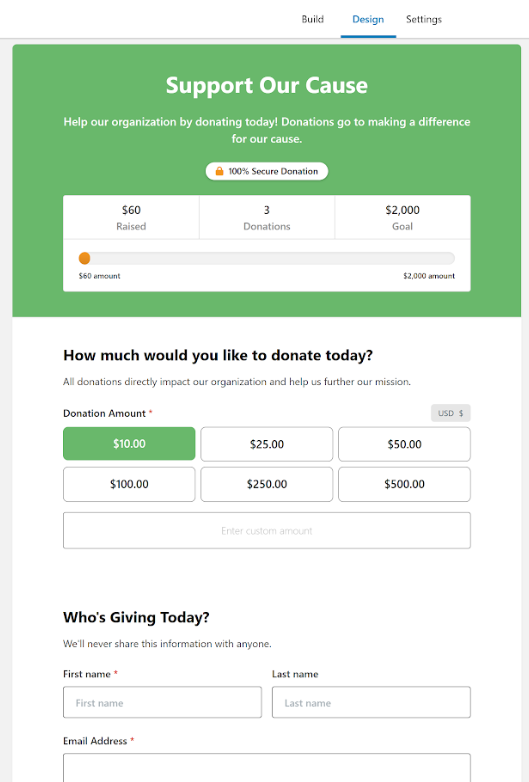
The Classic template displays all the fields in one, long-form style page. This is designed to reduce the number of clicks that a donor makes before submitting a donation.
Donors fill out the form as they scroll down the page.
Multi-Step Template
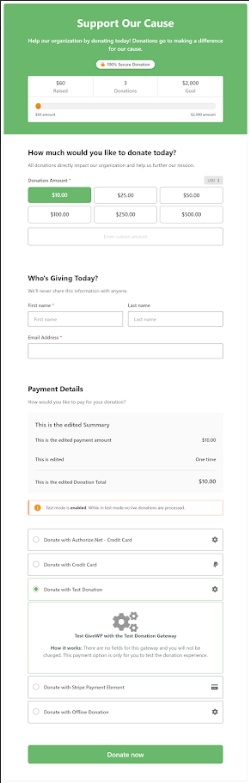
The Multi-Step template breaks the donation process into smaller, easy-to-follow steps. This layout helps reduce the visual length of the form, making it less overwhelming for donors.
In the Visual Form Builder, each new Section you add creates a new step in the form. This makes it easy to organize fields in a way that guides donors through the process one step at a time.
By default, the template starts with a header as Step One, but this can be turned off if preferred. Disabling the header can streamline the experience even more and help lower friction for donors who are ready to give.
Two-Panel Template
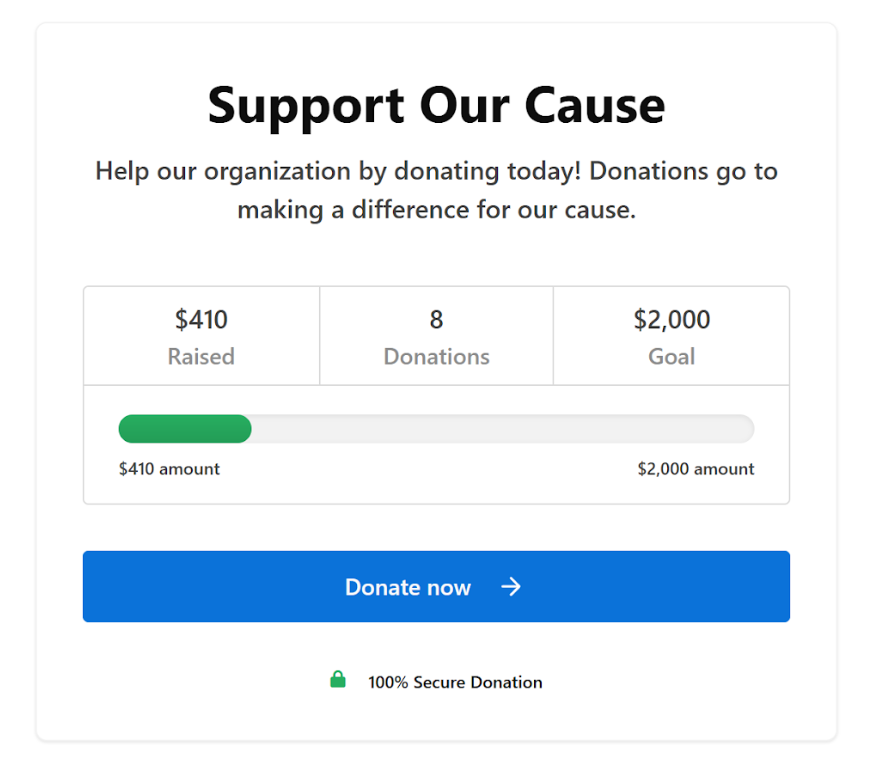
The Two-Panel template is the middle ground between the Classic and the Multistep templates.
The left side presents the header of the form, while the right side is a form that is separated on a few steps.
When viewed on mobile devices, the two sides of the form ‘stack’ upon each other, and this enables the header to still be viewable while viewing all the steps of the form. This greatly streamlines the experience of using the form on both desktop and mobile devices.
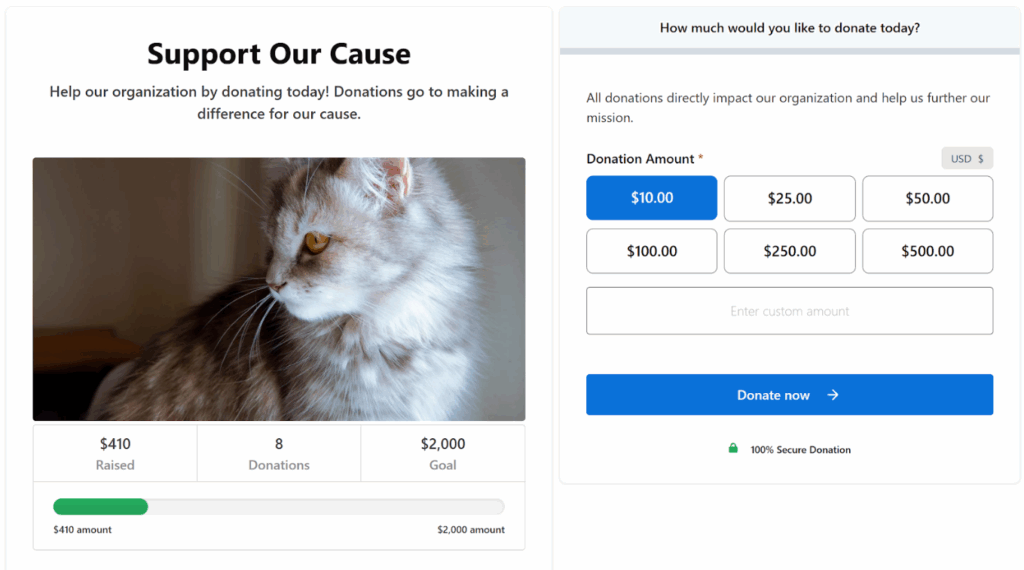
Donation Form Templates for Options-based Forms
GiveWP Form Templates let site admins choose how donation forms are displayed. For Option-Based Forms, there are three templates: Classic, Multi-Step, and Legacy.
Each one is designed to support a smooth donation experience. Some show fewer fields at a time to reduce overwhelm, while others keep the process short with fewer clicks. This guide covers each template and when to use it.
Selecting a Template
Form templates are set at the individual form level. To set the template, visit the Form Edit screen. On new forms, you must select a form template before you can publish the form.
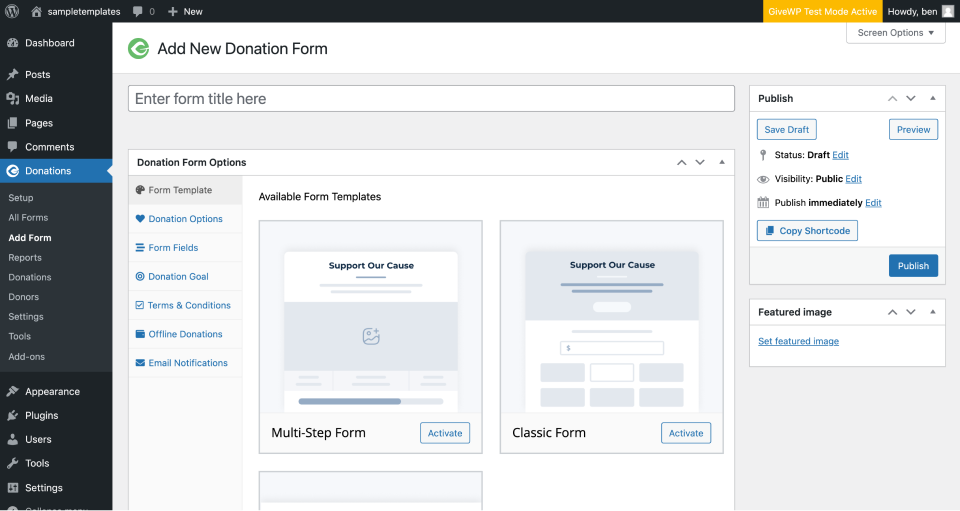
Once a form has been published, you can always go back and change the template in use, by selecting to “Deactivate” the current form template on the top of the Form Template tab, and then selecting and activating a different template.
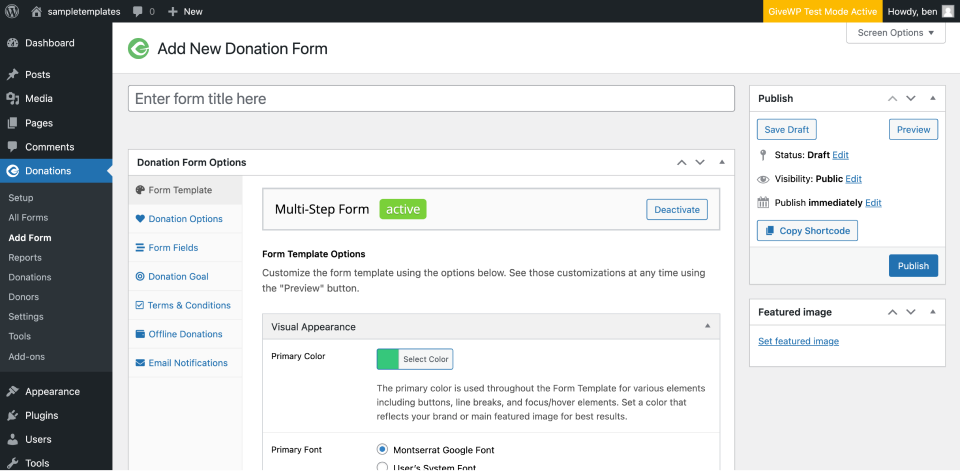
Multi-Step Template
The Multi-Step form template walks the donor through a number of steps to the donation process. This template is ideal for embedding in other pages or posts on the site, because of it’s fixed smaller width, and relatively small space requirements.
The options on the edit screen are broken into steps to correspond with the steps on the front end.
Step One can be disabled entirely, based on your needs. That removes a step (and the resulting friction) from the steps while still delivering a multi-step experience.
The Multi-Step template keeps the donor on the same page throughout the entire process, and displays the confirmation message in the normal flow.
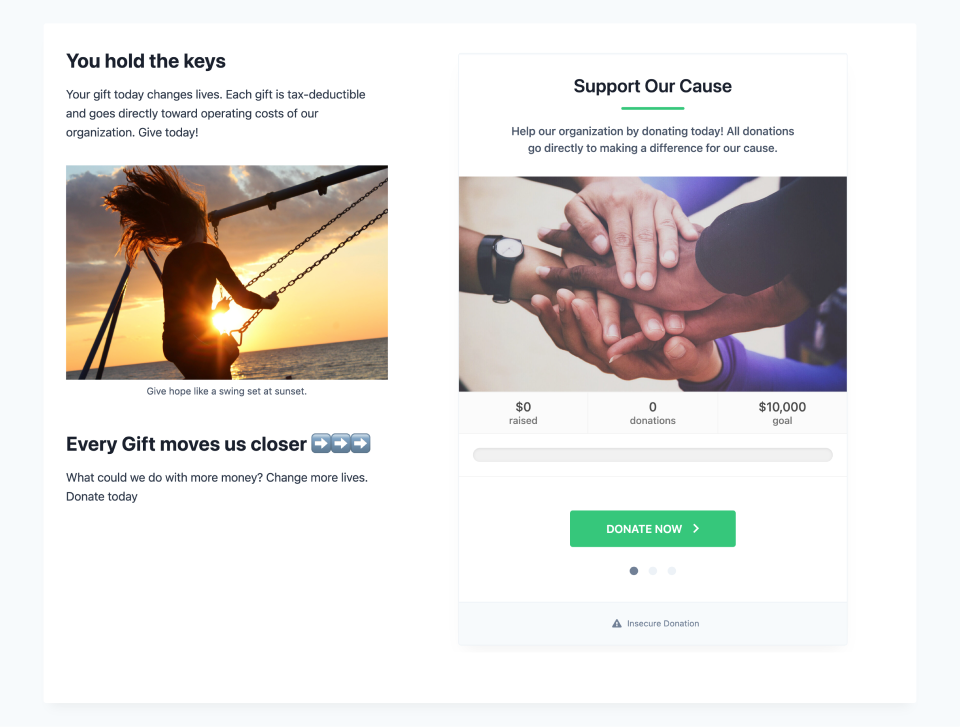
While it’s possible to change some aspects of the style (color, fonts, and image) on the Multi-Step form Template, it’s intentionally styled defensively so that themes or other plugins can’t inadvertently cause style conflicts. If you want to style your Multi-Step form templates, refer to this developer-level documentation.
Classic Template
The Classic template displays all on one page, and while its width is fixed, the Classic template is slightly wider than the Multi-Step template.
The Classic Form template is ideal for forms displayed by themselves on the page, and donors fill out the form as they scroll down the page.
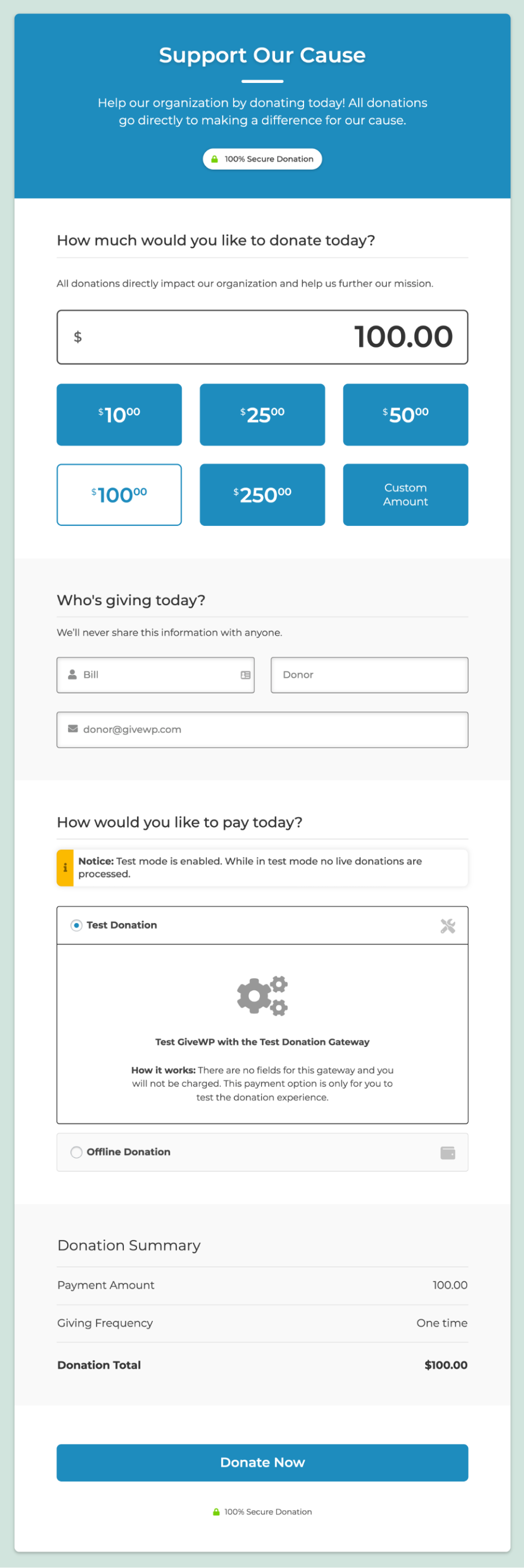
On the edit screen, the classic template is broken into sections, and you can configure each section. Some sections (which are indicated in the contextual documentation) are set so that leaving them blank prevents their display completely.
Like the Multi-Step template, adding custom styling beyond adding images, changing fonts, or adding custom imagery is intentionally difficult, to prevent themes and other plugins from inadvertently causing style conflicts.
Legacy Template
The Legacy template is ideal for developers and others who want to be able to more directly style things and create their own interfaces. While still fully supported, it’s the template that started it all, and does not receive as much attention going forward as the team builds out new form interfaces.
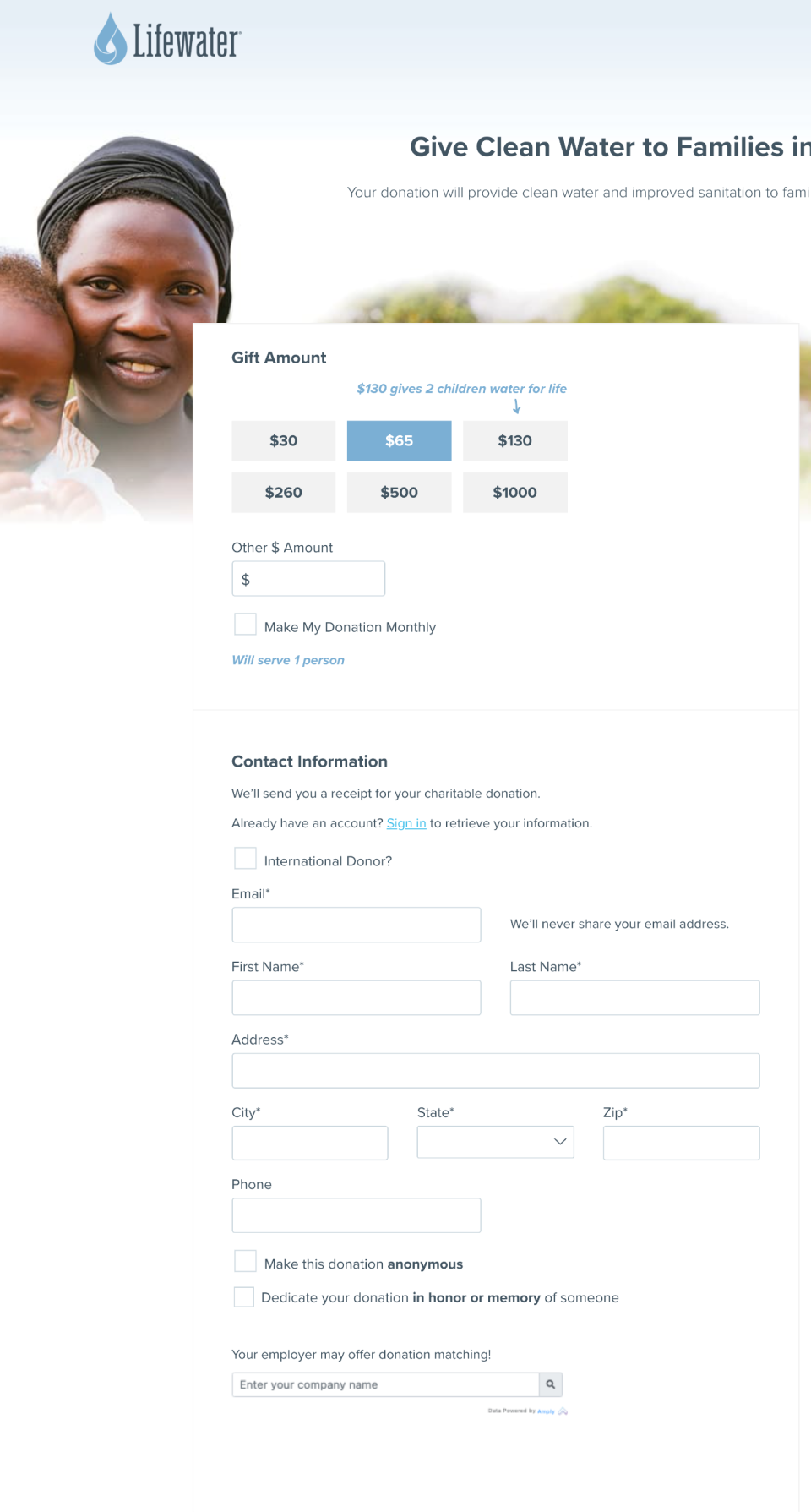
Note: The form shown in the image below was created by the professional designers and developers working with Lifewater.org and is shown as an example of how you can create stunning designs from the Legacy Template.