

Cloudflare Turnstile
Introducing GiveWP’s first captcha integration
The GiveWP Cloudflare Turnstile add-on protects your donation forms from spam donations and bots by verifying that form submissions come from humans. It employs a frictionless checkbox field on your form to ensure security and build trust with your donors.

Installing the GiveWP Cloudflare Turnstile Add-on
To install this add-on, you must either download the file or search for the plugin inside your WordPress admin. Choose whichever method works best for you.
Download and Install the Add-on File
- Download the plugin zip file for the GiveWP Cloudflare Turnstile add-on.
- Log into your website’s WordPress admin area.
- Go to Plugins > Add New Plugin in the left side menu.
- Use the Upload Plugin option at the top of the page.
- Upload the plugin zip file and choose Install.
- Wait for the message saying the plugin was installed successfully, and choose Activate.
Install and Activate from inside WordPress
- Log into your website’s WordPress admin area.
- Go to Plugins > Add New Plugin in the left side menu.
- Search for “GiveWP Cloudflare Turnstile.”
- Identify the correct plugin by the title, “Give – Cloudflare Turnstile” and the author, “GiveWP.”
- Choose Install on the plugin card.
- Wait for the message saying the plugin was installed successfully, and choose Activate.
Setting up the Cloudflare Turnstile Add-on
Once the add-on is installed, some setup is required. You will need a free Cloudflare account and a Turnstile widget for your website. If you don’t have a Cloudflare account, you must sign up on the Cloudflare website. Once you have an account, you can go to Turnstile inside your Cloudflare dashboard and follow Cloudflare’s instructions to create a widget. This will give you the API keys to connect GiveWP with Cloudflare Turnstile.
Steps to Connect
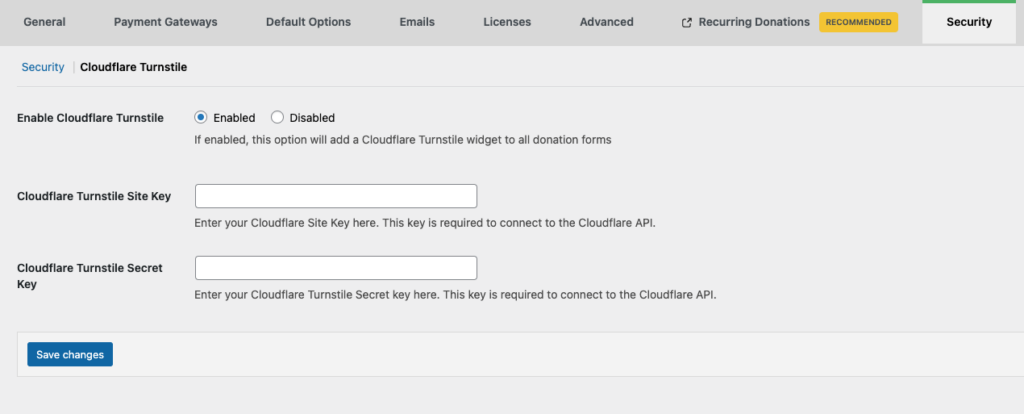
- Select Settings under the plugin title in the Plugins list or navigate to GiveWP > Settings > Security > Cloudflare Turnstile.
- Enable Cloudflare Turnstile, and two key fields will appear.
- Add the Site Key and Secret Key provided by Cloudflare when you created a Turnstile widget for your site.
- Save your changes.
Understanding How The Cloudflare Turnstile Add-on Works
When Cloudflare Turnstile is enabled on your site with valid API keys, a Cloudflare Turnstile checkbox will appear at the bottom of your donation forms, just above the Donate button.
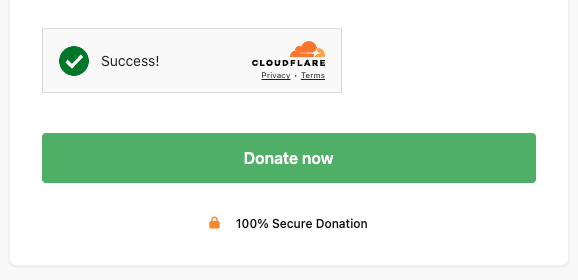
In some scenarios (such as a logged-in user), the box may be checked automatically, and the user doesn’t have to do anything. In most cases, this is a required field that the user must check before submitting the form.
This adds a layer of protection to your donation forms, reducing spam donations by adding a step that can only be completed by a real person.





