

Donation Upsells for WooCommerce
This add-on allows you to combine WooCommerce and Give by adding donation options to your WooCommerce cart or checkout based on your Give forms and form options. Payments made during the WooCommerce checkout process are all processed with your WooCommerce gateway. The donation amounts are sent to your Give donations records for proper reporting and donor management purposes.

Articles in this section:
 Customizing Upsell Markup
Settings
You can find the settings for Donation Upsells under your WooCommerce Settings screen. That’s found in:
WooCommerce > Settings > Donations
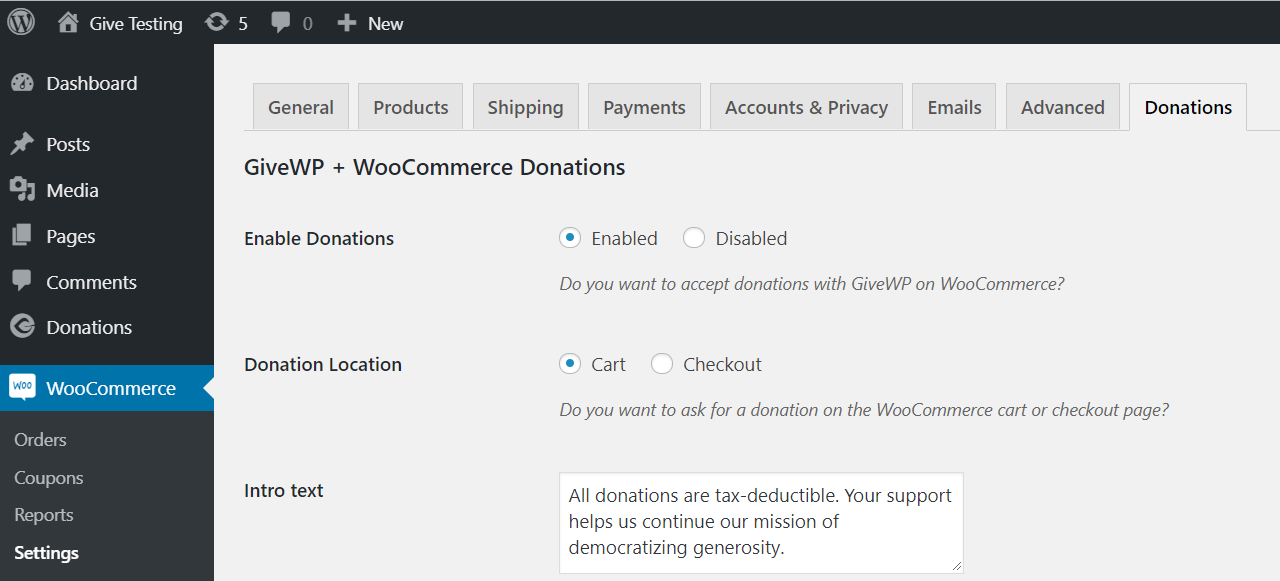
Enable WooCommerce Donations
Settings Type: Radio Buttons
Options: Enable | Disable
Default: Disabled
In order to use Donation Upsells in your WooCommerce shop, this must be enabled. Once enabled, all the settings below become visible.
Donation Location
Settings Type: Radio Buttons
Options: Cart | Checkout
Default: Cart
This allows you to choose where the Donation Upsells appear within your checkout process. The “Cart” is the traditional place to put Upsells in general since this is the easiest place to refresh the contents of the purchase.
Intro Text
Settings Type: Textarea
Default: None
Use this area to write an introduction to the Donation Upsells section within your cart/checkout. This helps inform customers on the purpose of the section and potentially how the donations benefit your organization.
Display Text
Settings Type: Text field
Default: “Donation to {donation_title}”
This is how each donation form that appears in the Donation Upsells area will be listed. There are two different tags you can use to auto-populate information in this field:
{donation_title}— this will show the title of the Give donation form{donation_amount}— this will populate the “Set Donation” amount of the form.
NOTE: Keep in mind the exact title of your forms. In order to make the sentence be grammatically correct for any form you choose you may want to wrap the tag in quotes.
Donation Forms
Settings Type: Multi-select dropdown
Default: None
This is where you choose your forms to be populated in the Donation Upsells area. You can choose as many or as few as you like. They will be applied to the cart or checkout every time your customers add any product to their cart.
Multi-level Display Style
Settings Type: Radio buttons
Options: Dropdown | Radios
Default: Dropdown
If the form you choose to add as an upsell has multi-levels, you can choose here what style they will appear as.
The Customer/Donor Experience
Give Donation Upsells is a seamless donation experience for your customers. You can add it either to the Cart or to the Checkout.

FAQ
If a donor uses a percentage-based discount code, the discount only applies to the products in the cart, not the donation amount.
Example:
Product Total: $60
Donation Amount: $50
Subtotal: $110
Discount Code (10% off): The 10% discount is calculated only on the $60 product total ($6 discount).
Final Total: $104 ($54 for products + $50 donation).
Once you receive the physical payment, you can manually update the donation status to Completed within the Give donation records.
The donation amount is not included in recurring billing cycles. At checkout, the recurring charge display will reflect only the cost of the subscription, while the initial total will include both the subscription and the one-time donation.
Recurring Donations: Only one-time donations are supported.
Fee Recovery: Donors cannot opt to cover processing fees for upsell donations.
Custom Fields: Custom form fields will not render in the WooCommerce checkout area.
Per-Product Forms: You cannot currently assign different donation forms to specific WooCommerce products.
give_wc_donation_form_title — customize the Donation form Title
give_is_wc_donation — filter how WooCommerce decides whether part of the order is a donation or not.
give_form_level_text Customize your form levels just in the Upsells section.
give_wc_form_args — Customize the donation form attributes passed to the Donation Upsell list on your cart/checkout.
give_wc_global_setting_fields — Customize your own Give Donation Upsells Settings
give_wc_create_donation — modify the Give donation data that is passed to the WooCommerce order.
give_wc_donation_title — customize how the form title looks on the Upsells area.
give_wc_sync_payment_status — customize how the payment status is mapped from the WooCommerce order to the Give Donation payment status
give_wc_before_cart_donation — Fires before the donation upsell HTML is rendered on cart/checkout
give_wc_after_cart_donation — Fires after the donation upsell HTML is rendered on cart/checkout





