

Merging Campaigns
Introduction
Merging campaigns helps site admins combine multiple campaigns into a single, organized campaign.
After migrating to GiveWP 4.0, many sites may have individual campaigns for each donation form. Merging campaigns allows admins to group related forms under one campaign, perfect for ongoing causes, seasonal events, or repeat fundraisers.
Merging also restores the ability to easily duplicate forms from within a single campaign, making it faster to setup future fundraisers. This feature helps keep campaigns organized and reduces clutter in the Campaigns list.
Merging a Campaign
To merge campaigns, follow these steps:
- In the WordPress Dashboard, go to GiveWP > Campaigns.
- Select the checkboxes next to the campaigns to merge together.
- Click the Bulk Actions dropdown, select Merge.
- Click Apply to combine the selected campaigns.

Next, a message will appear detailing all of the donation data that will be combined into a single campaign after the merge is complete. Click the Proceed button to continue, or, click the X in the upper right corner to cancel the process.

After clicking to Proceed, you will be prompted to select a destination campaign.
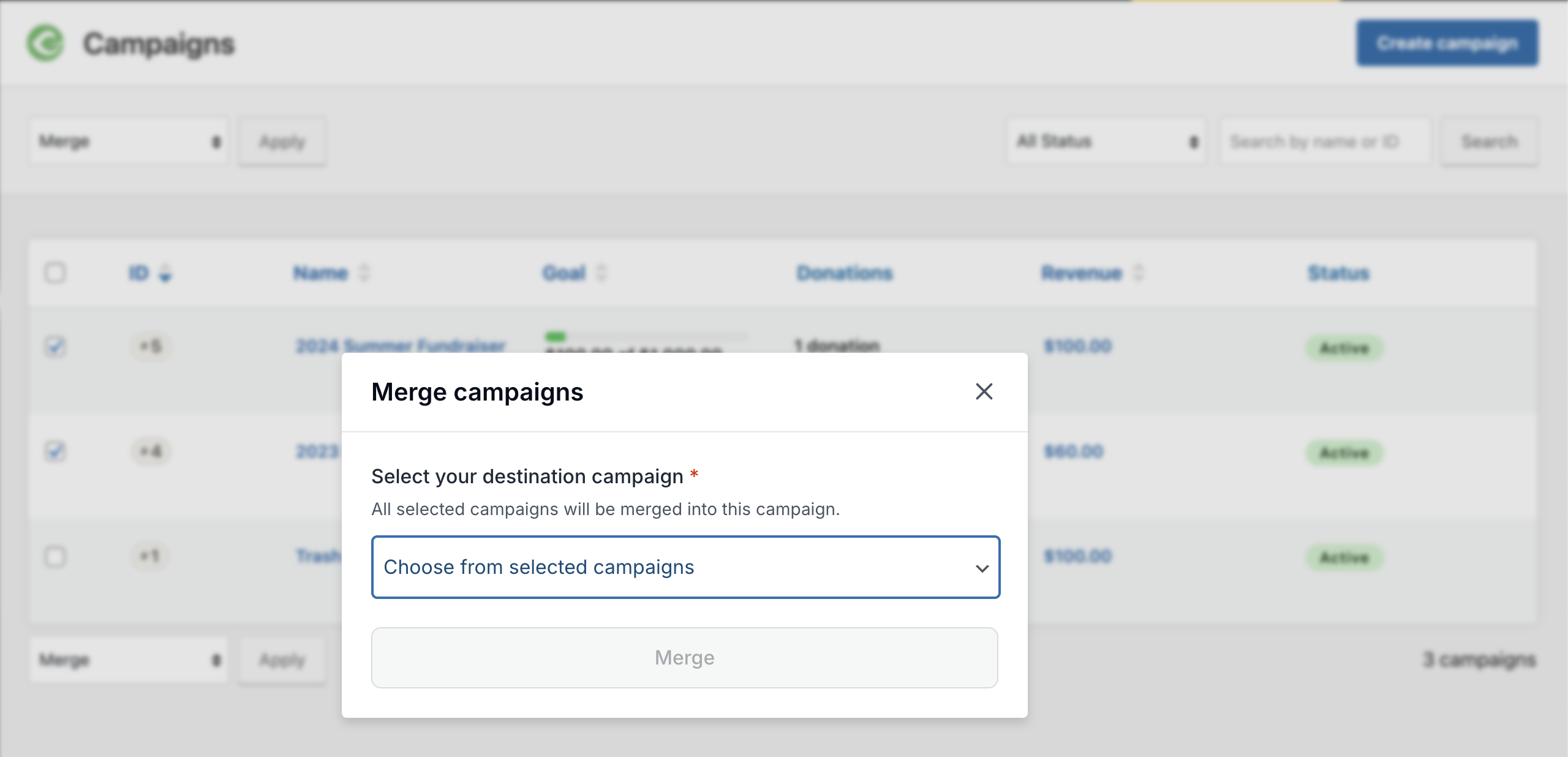
Select the destination campaign from the list, then click the Merge button.
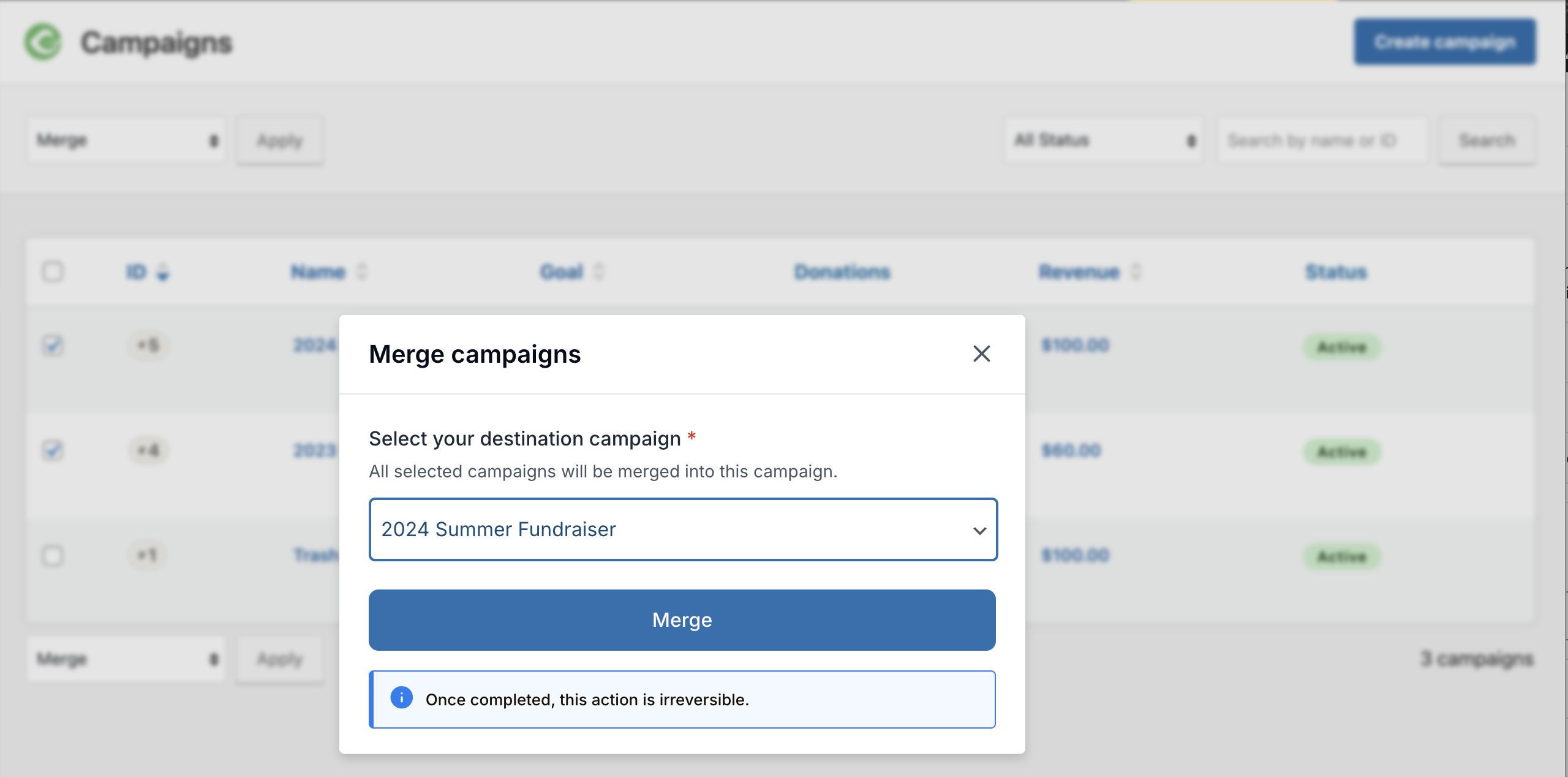
Note: Notice the message at the bottom that once completed, the merge action is irreversible.
When the merge is complete, you have the option to go Back to campaign list, or View destination campaign that will now contain all donation forms and associated data for the merged campaigns.

After Merging Campaigns
Now that the campaigns have been merged into one, consider renaming the designation campaign to better represent the donation forms it contains. You may also want to update other campaign details, such as the description or goal.
To edit the campaign settings:
- Click to edit the destination campaign.
- Click Settings to update the campaign information.
For more guidance on configuring campaigns, see Configuring a Campaign.





