

Peer-to-Peer Blocks
Peer-to-Peer Blocks
The GiveWP Peer-to-Peer Blocks allow you to display leaderboards, campaigns and campaign lists with a few clicks of a button using the dynamic block editor. All the settings can be configured in the block editor and can be viewed in real-time as you make changes.
Displaying leaderboards is a great way to encourage donors and teams by tracking and ranking donation goals across campaigns.
Benefits of using the GiveWP Peer-to-Peer Blocks
GiveWP Blocks help you create styled pages to display leaderboards, campaigns, and lists with a couple clicks. The ability to embed leaderboards and lists on a page or post via the WordPress block editor allows for displaying information and competition between teams in a flexible way.
Using the block editor allows you to style the form directly in the editor. These settings provide a simple way to tweak displays when compared to building leaderboards and lists using code or shortcode. Block editors are especially helpful for users with a preference for visual feedback. You can make changes and visually see the impact almost instantly.
How to add the GiveWP Form Block to a Page or Post
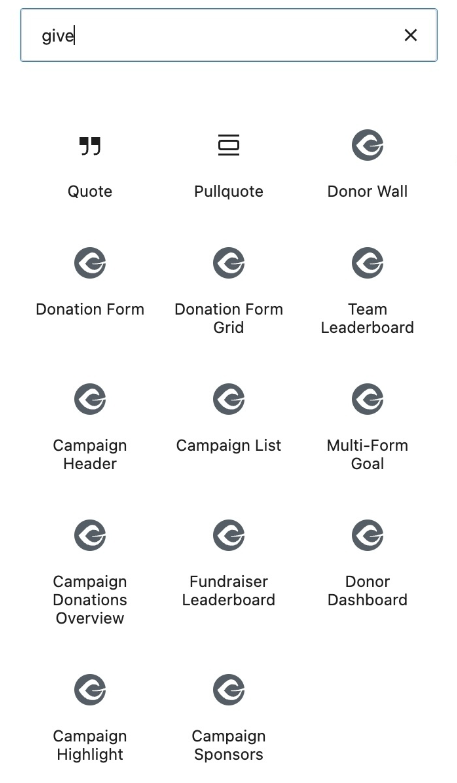
To add GiveWP Peer-to-Peer Blocks to a page or post, start by selecting it from the list of blocks when you click on the “add new block” interface, typing “give” and selecting your preferred block from the list.
Peer-to-Peer Fundraiser Leaderboard Block
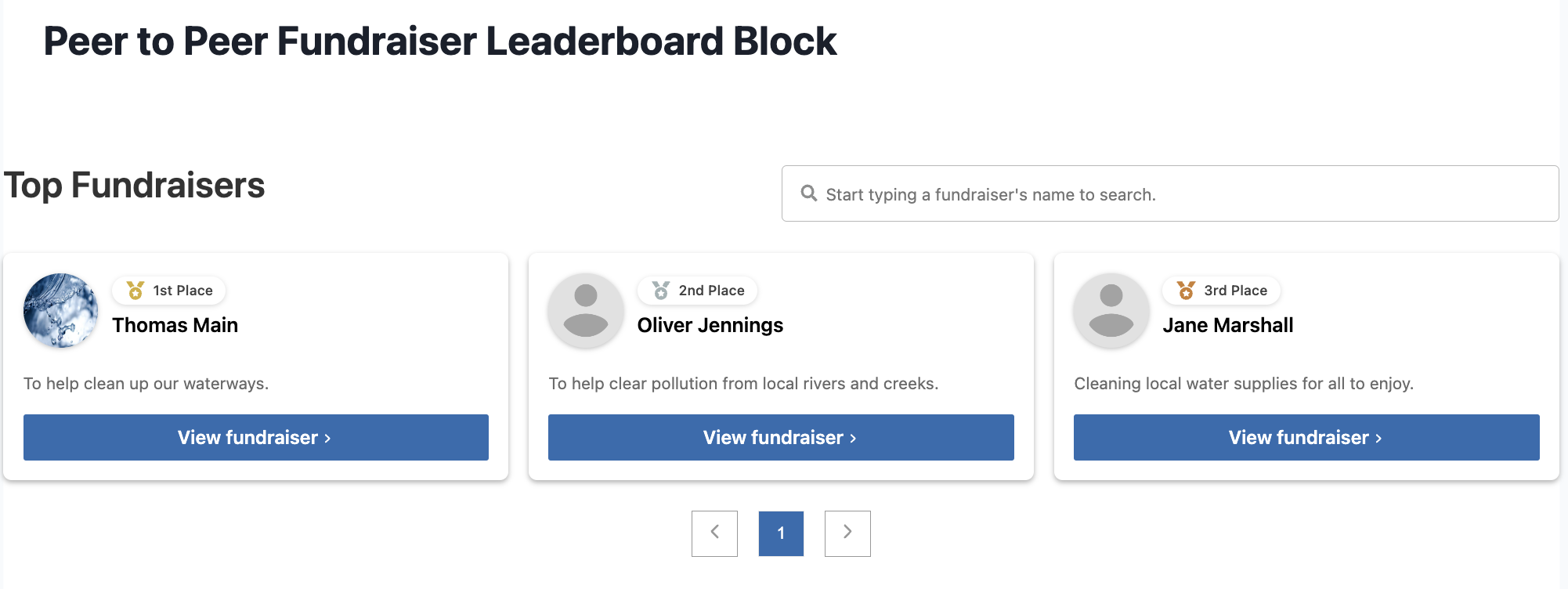
To display a Fundraiser Leaderboard, you’ll select the Fundraiser Leaderboard Block which will give you a dropdown menu of campaigns you can choose from.

Select your campaign, and your list of fundraisers will display on the page.

In the settings section, you’ll find several options you can customize to create your perfect display including layout, elements you can display, the style of the grid, pagination, and customizing the color.

Using the same example above, the block has now toggled off the goal display and changed the color to blue:
Peer-to-Peer Team Leaderboard Block
Just like the example above, you’ll click the “+” to search for the Team Leaderboard Block. Once you have selected the block, you’ll again select the campaign for the teams you would like to display. You have all the same options for customization as the Fundraiser Block in the settings section of the block editor.

Peer-to-Peer Campaign Highlight Block
The Campaign Highlight Block allows you to select and highlight a special campaign that you would like to funnel more donors toward. It gives this campaign a page of its own, emphasizing the work being done. This is a great option for targeting donations for time-sensitive campaigns.
You will select this block, choose your campaign from the dropdown list, and your campaign will display on the page. You can choose from options in the settings to further customize this display with avatars, goals, descriptions, campaign information, and custom colors.

Peer-to-Peer Campaign List Block
With the Campaign List Block, you can build a custom layout to display all the available campaigns your donors and fundraisers can commit to. Campaign lists help fundraisers decide which campaigns they would like to form teams for, and give donors an overview of the type of work your organization is doing. You’ll have options to display goals, create a layout, display campaign information, descriptions, and custom colors in the block settings.

Campaign Header Block
To display a Campaign Header, you’ll select the Campaign Header Block which will give you a dropdown menu of campaigns you can choose from.

Select your campaign, and its header will display on the page.
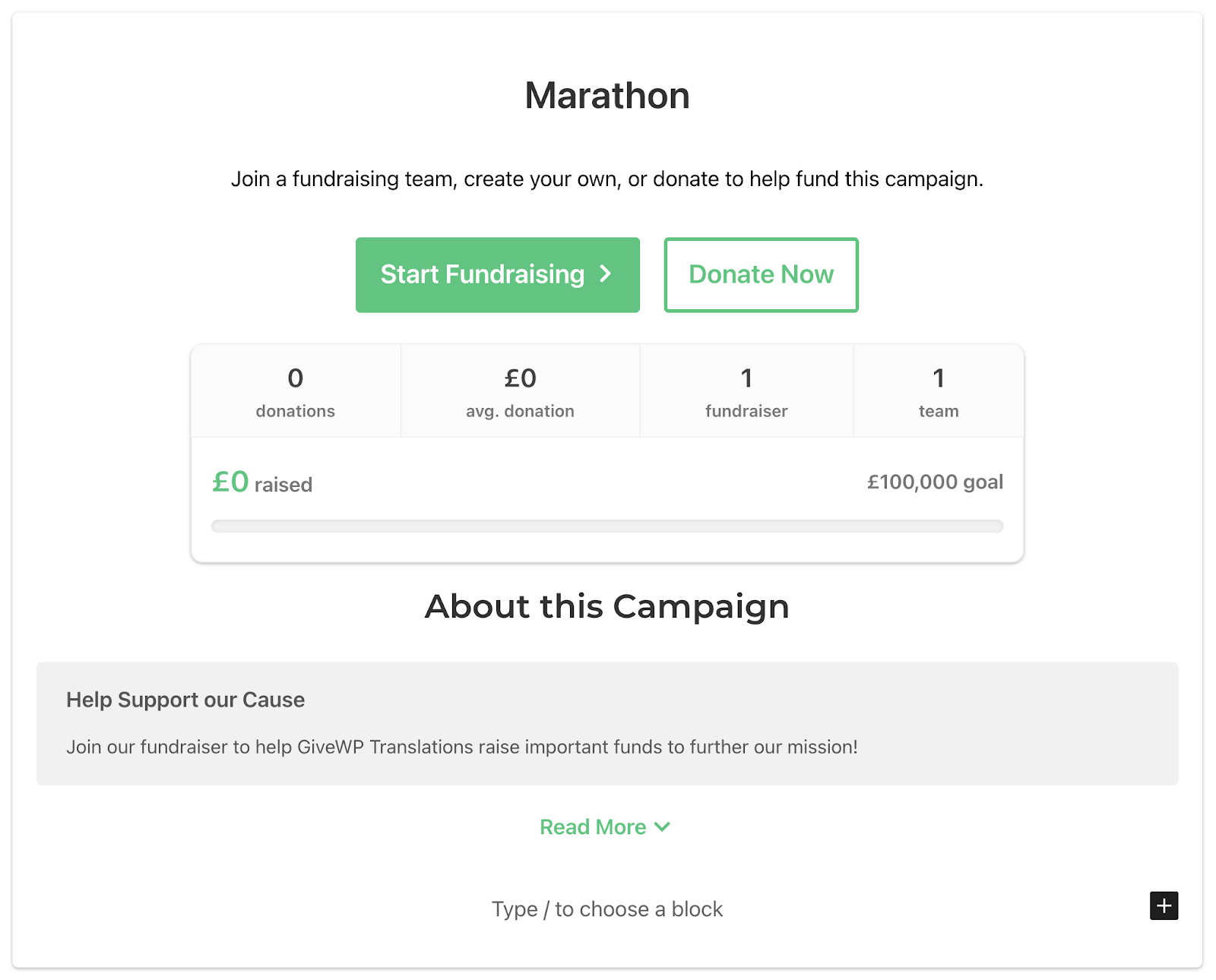
In the settings section, you can customize the Primary Color and the Goal Bar Color to create a donor experience that is consistent with your organization’s branding.

Campaign Donations Overview Block
The Campaign Donations Overview Block displays a list of recent donations and donors from the selected campaign.

In the settings section, you can customize the Primary Color, which can be useful for branding or to call attention to specific campaigns.

Using Blocks to Customize Your Campaign Page
The Peer-to-Peer add-on integrates blocks, enabling you to tailor the appearance of your Campaign Page to better reflect your branding, match the overall look of your website, and create a custom experience for your donors.
To access this feature, follow these steps:
- Create your campaign.
- Once your campaign is saved, navigate to the top right corner of the screen. You’ll find two buttons:
- View Campaign Page: Click here to preview your campaign page as it would appear to a donor.
- Edit Campaign Page: Click here to customize the visual aspects of your campaign using Blocks.
Let’s dive in and customize your Campaign Page now!
Refining Your Campaign Page
Once your Campaign Pages loads, you’ll see a comprehensive overview of your campaign and a sidebar that contains an array of customizable settings. These settings empower you to customize both the overarching campaign and the individual blocks to suit your organization’s needs.
Here’s a quick look at which campaign settings you control:
Campaign Name: The title of your campaign. This should reflect the purpose of your campaign.Short and Long Descriptions: Space to include a description of the campaign, and a call to action for donors to give.Campaign Goal: Define a fundraising goal to help motivate donors.Logo and Image: Include your organization’s logo for more complete branding, and images to help tell the story behind your campaign.Primary and Secondary Colors: Personalize the aesthetic or match your organization’s branding and web design by selecting colors for your campaign theme.
These settings give you the flexibility to fine-tune the visual presentation of your campaign, ensuring it engages your audience and generates more giving.
Editing blocks
In the realm of campaign customization, each component is housed as an independent block. By default, you’re see four distinct blocks:
- Campaign Header
- Campaign Donations Overview
- Team Leaderboard
- Fundraiser Leaderboard
Campaign Header and Campaign Donations Overview
Within each block, you’ll find settings you can use to customize each piece of your Campaign Page. For example, the Campaign Header and the Campaign Donations Overview blocks include an Advanced tab: you can dive into this tab to customize the block name and incorporate additional CSS classes, which puts the power of styling and alignment in your hands.

The Team and Fundraiser Leaderboards have many more settings you can work with.
Team Leaderboard
The Team Leaderboard block helps administrators showcase teams participating in a specific campaign. You’ll find the following settings available:
Layout: Choose between a grid or table layout.Columns: Allows you to choose your layout and number of columns.Display Elements: Displays which elements are showcased within the leaderboard. Toggle the visibility of avatars, goals, and team information to curate a streamlined and informative display.Teams per Page: Determine the number of teams displayed upon the initial page load.Pagination: Allows visitors to navigate leaderboards.Color Settings: Define the primary color for your leaderboard.

Fundraiser Leaderboard
The Fundraiser Leaderboard block allows admins to display fundraisers for a specific campaign. When you click to edit this block, you’ll find settings similar to those on the Team Leaderboard. The main difference is that you have the ability to display/hide the description under the Display Elements tab.
You can choose to display or hide fundraiser descriptions under the Display Elements tab. This flexibility allows you to customize the level of detail presented for each fundraiser, catering to your campaign’s specific needs and your donors’ preferences.

Why Choose Blocks?
GiveWP’s Peer-to-Peer Blocks are the perfect choice for organizations interested in building custom pages without code. These pre-styled blocks provide a range of customization options with the click of a button, leaving more time for the very important work of raising donations for worthy causes.





