How to Use WordPress

If you want to build a website, but you’re not sure how to get started, this is the place for you. Here we’ll answer the following questions:

  1. What is WordPress?
  2. How do you Create a WordPress website?
  3. What is a WordPress plugin?

What is WordPress?

WordPress is a “Content management system,” or CMS, used to build any kind of website. It’s a piece of software that runs on a server so you can maintain your website without any code if needed.

WordPress is easy to use, which is probably why it powers over 37% of the internet.

You’ll notice there are two versions of “WordPress” available: WordPress.com and WordPress.org.

WordPress.org

Is the free, open-source WordPress software that you can install on your own hosting account to create a website that you own completely.

WordPress.com

Is a hosted service that is powered by the same software used on WordPress.org. It’s simpler to use but loses much of the freedom and functionality of WordPress.org.

For our purposes here, we’ll focus on using the free version, which is often called self-hosted WordPress.

How Do You Create a WordPress Website?
To get started with WordPress, you need a hosting account and a domain. Try to find a hosting provider with a “one-button-launch” for WordPress so you don’t need to worry about the setup, just the design and functionality.

Once you have WordPress installed, let’s set up your admin dashboard.

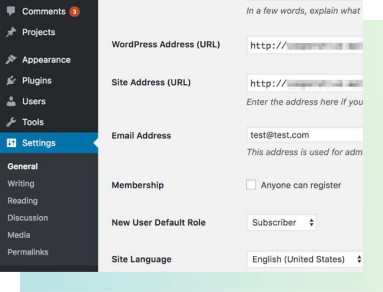
First, go to your settings area and make sure you go through all the menu options, including General, Writing, Reading, Discussion, Media, Permalinks, Privacy, and Sharing. You may choose to leave these on default settings, but it’s best to at least sift through them one time so you know what’s there.

The WordPress admin settings panel is important for first-time users to get used to.

Using WordPress Themes and the Customizer

Next, Go to “Appearance > Themes.” Here, you can see which theme you have activated. All new WordPress installations come with a default theme named after the year it was launched.

Your theme is what helps you control the look and style of your website. It doesn’t necessarily add functionality in most cases, but it will change the way you can customize your website’s appearance.

Once you have your theme in place, use the Customizer to change your website’s appearance. Choose colors, fonts, and anything else you need to make your site work for your goals.

Finally, it’s time to add functionality, like contact forms, payment options, or search engine optimization. We’ll do this with plugins.

What is a WordPress Plugin?

A plugin adds functionality and other features to your website.

GiveWP

Allows you to accept online donations through custom forms as well as keep track of your donation database from your admin dashboard.​

Yoast SEO​

Is another plugin that provides you with the tools you need to make sure your website is found on Google and other search engines.​

The list goes on, but you can see all the free WordPress plugins by going to your Admin Dashboard and finding “Plugins > Add New.”

Free & premium plugins
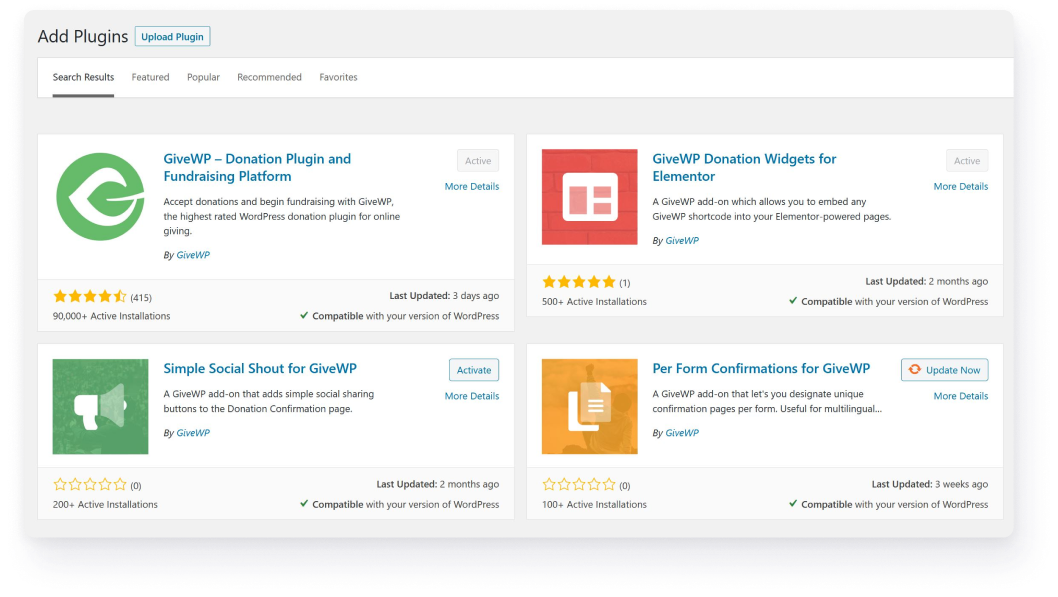
Searching for GiveWP in the plugin directory from your WordPress dashboard will show you the free donation plugin and all of our free GiveWP add-ons.

Many WordPress plugins start free. You can find all the free – and safe – WordPress plugins directly from the admin panel on your website.
Most of these plugins also have paid options available. To find the paid options for any WordPress plugin, you might see notifications in your admin dashboard. Or, you can check out their website to see what else they offer.

GiveWP

Offers a multitude of premium add-ons that allow you to add more functions to your donation forms, like recurring donations or fee recovery.

Yoast SEO​

Also offers a free version alongside their multitude of premium SEO plugin options. Each one provides you with different tools.

Get Started with More WordPress Resources

Overall, getting started with WordPress is fairly simple. You can create a simple fundraising website in minutes or build an entire donation search engine from scratch using custom code. The possibilities are endless.


Now that you have a basic understanding of WordPress, let’s move on to the basics of GiveWP by learning how to properly install and activate plugins and their add-ons.


Additional WordPress Resources

As Featured In:

Ready to get started?

Try GiveWP 100% risk-free for 30 days

Join Our Newsletter​

Get fundraising insights directly in your inbox. Plus a 15% discount off all plans.

  • This field is for validation purposes and should be left unchanged.

Copyright © 2025 Liquid Web, L.L.C.

GiveWP™ is a trademark of Liquid Web, L.L.C.

A Liquid Web Brand
Hosting for WordPress
© 2025 All Rights Reserved

Register now to get started

You’re just a few clicks away from experiencing Give where you can create, edit, and view donation pages and forms, manage donors and donations, and view reports.

Give Demo Signup

This is where we'll send your login details, please make sure it's a valid address.
I also want to receive news about products, sales, and discounts.

By creating a demo, you agree to our Terms of Use.

GiveWP Gives You More Than a Venmo QR Code

Connect your Venmo donations with engaging fundraising tools through our customizable forms.