

Recurring Donation Form Fields
This Recurring Donations Add-on allows you to configure each of your donation forms to accept recurring donations on an ongoing basis or for a set period. This article overviews the fields that Recurring Donations add to your form editor.

Enabling Recurring In the Visual Donation Form Builder
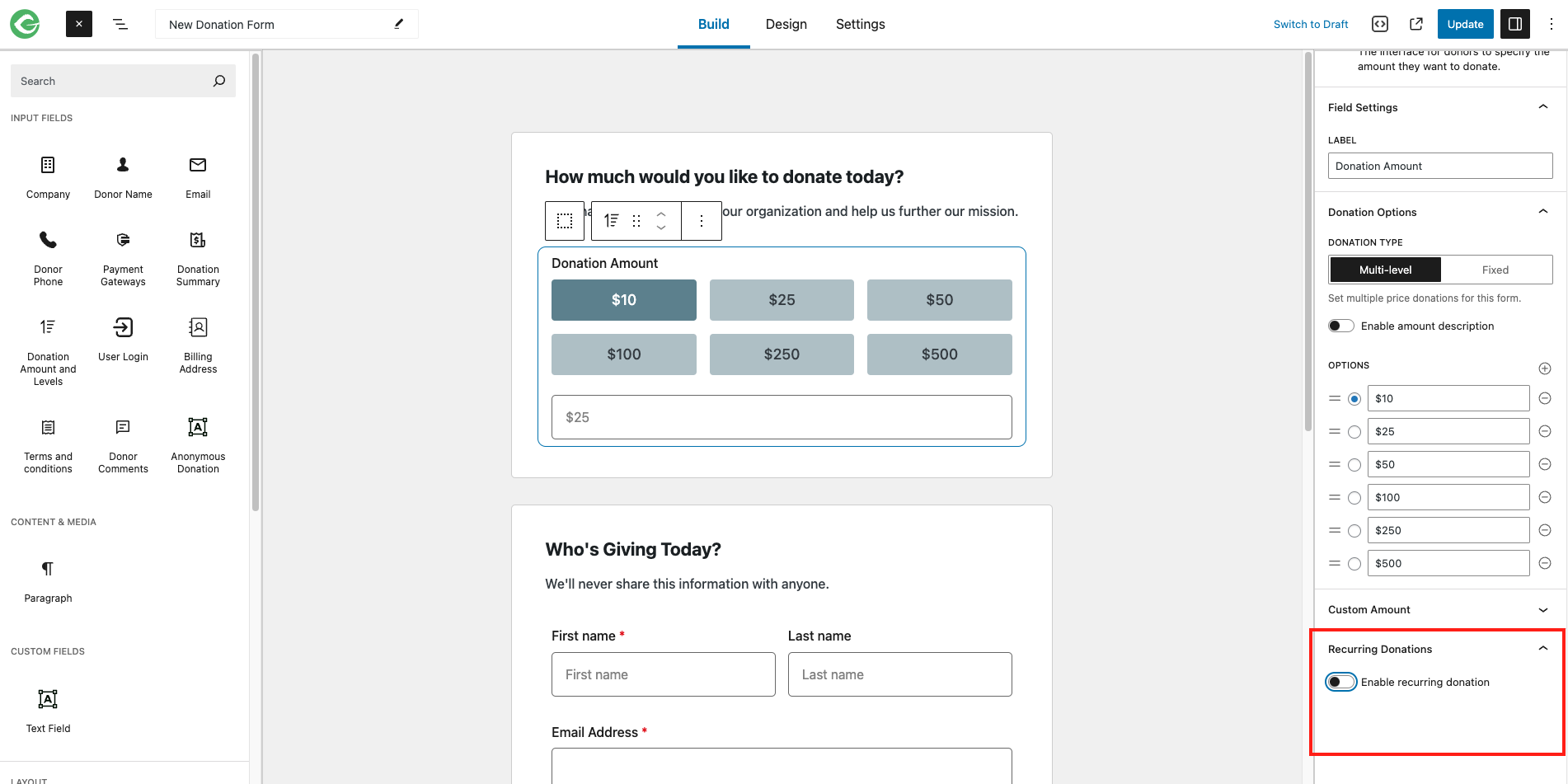
When you have installed and activated the Recurring Donations add-on, you’ll have the option to enable recurring donations inside your Donation Amount and Levels block settings in the Visual Donation Form Builder.
- Find or create the form to which you want to add recurring donations and edit it.
- Select Build from the menu at the top of your donation form editor.
- Select the Donation Amount block on the canvas.
- On the right, you’ll see a menu of block settings. Scroll to the bottom of these settings to find Recurring Donations.
- Expand the Recurring Donations settings and toggle on Enable recurring donation.
Recurring donations can be enabled on a per-form basis, giving you the flexibility of configuring different donation options for each form.
Configuring Recurring Donation Options
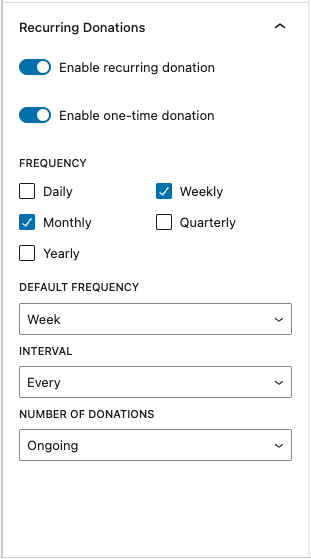
Once you’ve enabled recurring donations for a form, additional settings will appear that you can use to configure the giving options your donors can choose from. These may seem complicated initially, but once you understand what each setting does, you’ll quickly learn how to configure them to achieve specific donation options.
Enable One-Time Donations
When recurring donations are enabled on a form, you can choose not to allow one-time donations. By default, one-time donations are enabled, but you can toggle this off if you only want to allow recurring donations.
Recurring Donation Frequency
You can choose which of the provided donation renewal frequencies you want donors to select: Daily, Weekly, Monthly, Quarterly, and Yearly. If you only choose one of these frequencies, that is the only option donors will have on this form.
Default Frequency
You can choose which donation frequency your form will use as the default. The options available depend on which frequencies you’ve selected.
Renewal Interval
You can choose an interval at which donations will renew. Let’s break it down:
- Every: This is the default. The donation renews every time the frequency occurs. For example, daily donations renew every day.
- Every 2nd: Think of this as “every other.” The donation renews every other time the frequency occurs. For example, daily donations renew every other day.
- Every 3rd: The donation renews every third time the frequency occurs. Daily donations renew every third day.
There are also 4th, 5th, and 6th intervals.
Number of Donations
Most of the time, you’ll want donors to give on an ongoing basis, so the default setting is Ongoing. This means the donation will continue renewing until an administrator or the donor manually cancels it. Alternatively, you can select the number times the donation will renew until it is automatically canceled, up to 24 times.
Recurring Donation Examples
To understand these settings better, let’s look at some example scenarios.
Patreon-like Support
I produce content and rely on my followers to provide monetary support for my time creating content for them. I want them to donate a certain amount every month, so I have a reliable recurring income to support my work. I don’t want my supporters to stop giving automatically. I will set up a donation form with these options:
- Frequency: Monthly
- Default Frequency: Month
- Interval: Every
- Number of Donations: Ongoing
Church Tithing
I want members of my congregation to have the convenience of tithing via an online donation form. Most of my congregation gets paid on a biweekly basis. I want my congregation to continue tithing until they choose to stop. Therefore, I’ll set up a donation form with the following options:
- Frequency: Weekly
- Default Frequency: Week
- Interval: Every 2nd
- Number of Donations: Ongoing
Semi-Annual Giving
My charity relies on large donations and regular giving. It is most impactful to have donors give on a semi-annual basis. I want my donors to continue giving as long as they’re able. This is how I will set up my donation form for semi-annual giving:
- Frequency: Monthly
- Default Frequency: Month
- Interval: Every 6th
- Number of Donations: Ongoing
Donating in Installments
I’m running a campaign this month to fund my cause for the coming year. I want donors to commit to giving a certain amount each month for the next 12 months. This is how I’ll set that up:
- Frequency: Monthly
- Default Frequency: Month
- Interval: Every
- Number of Donations: 12 donations
Common Questions about Configuring Recurring Donations
Field Overview and Description
After you have properly setup the Recurring Donations plugin, it’s time to enable recurring functionality for your donation forms. When you do, new fields appear according to your selection. For example, you can set up one or many donation forms for potential donors to select whether they want to give once or on a weekly, monthly, or even yearly basis.
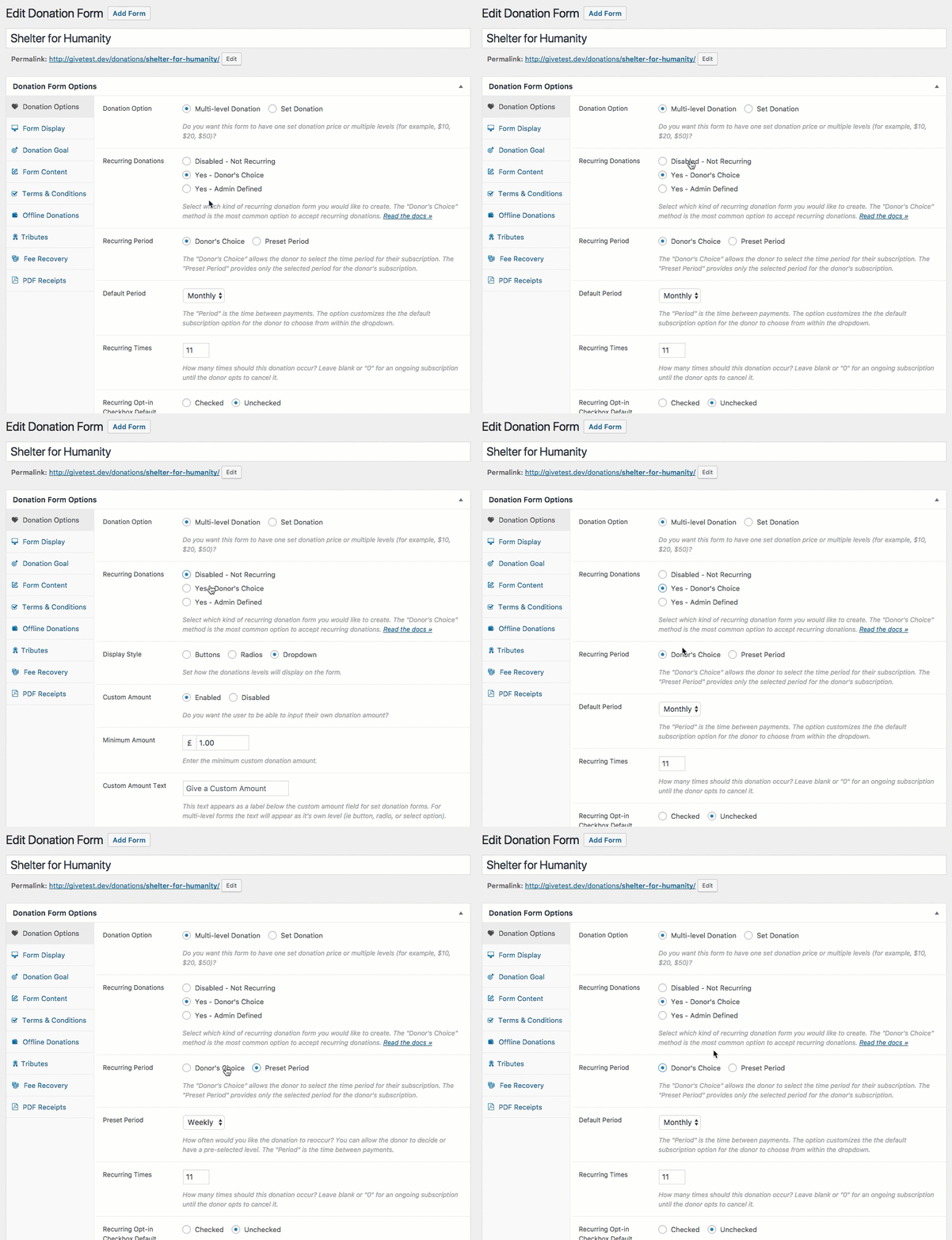
When you install and activate the GiveWP Recurring add-on and first visit a new or existing donation form, you will see some new options:
The Recurring Option
This is the most important option because it specifies whether or not you’d like to enable recurring functionality for the given form.
Disabled – Not Recurring: This form will not accept recurring donations.
Yes – Donor’s Choice: This is the most commonly used configuration. Choosing “Donor’s Choice” allows the donor to decide when donating whether they want to make a one-time donation or choose one of the recurring subscription frequency options.
Yes – Admin Defined: For “set” form types this option makes giving set to recurring. For multi-level forms, the “Admin Defined” makes it so that the recurring option can be set per level.
Now let’s take a look at a few examples of how these options display on the donation form.
Donor’s Choice Examples:
In this example the donor is given a choice to opt-in to a subscription donation via a checkbox. The checkbox can be checked or unchecked by default.
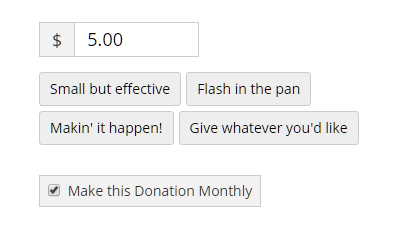
Admins can also configure the “Recurring Period” to be Donor’s Choice for more flexibility. This will allow donors to choose the subscription frequency as well:
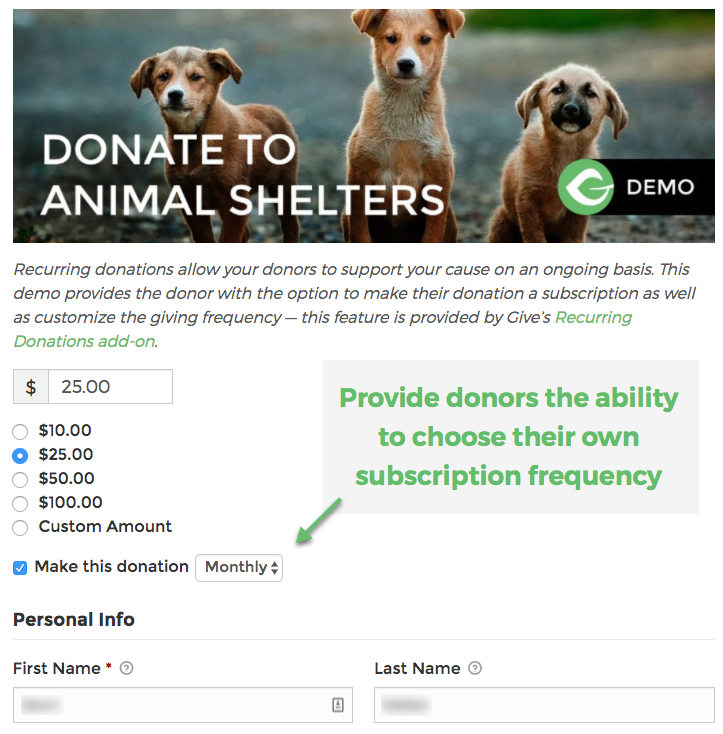
Donors can choose whether to make a donation recurring and also select the giving frequency.
Admin Defined Example:
If you want to limit the recurring options for donors then you can do so with the “Admin Defined” functionality. See this form only has the functionality to donate $20.00 monthly:
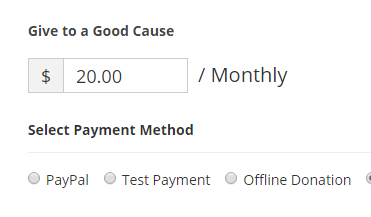
You can have multi-level admin defined forms as well with additional choices for donors:

A Multilevel Recurring Donation Form
How Custom Amounts Work In Admin-Defined Recurring Forms
When you enable custom amounts on an admin-defined form, an additional field populates that allows for the configuration of the recurrence of the custom amount:
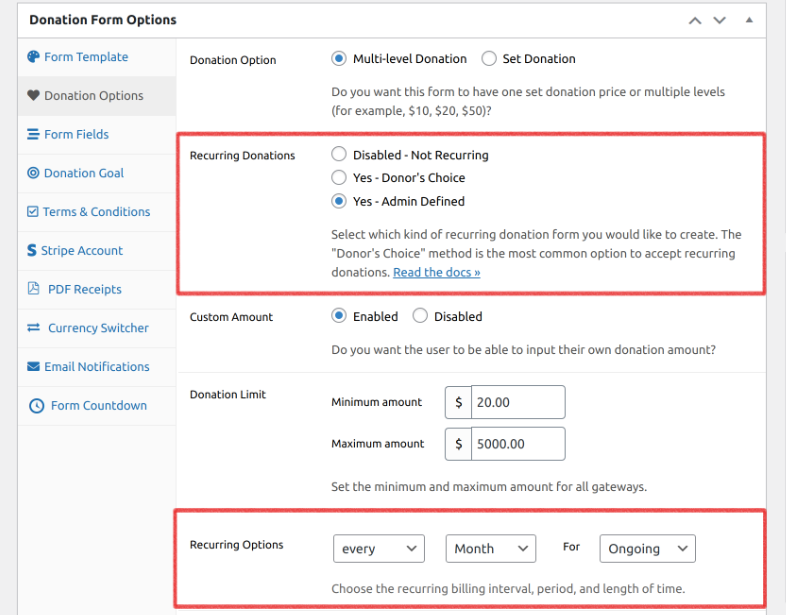 Selecting Admin-defined recurring forms populates an additional field for configuring that custom amount’s recurrence.
Billing Periods
By default, recurring donations will recur until canceled by an admin or the donor. Ensure that there’s either a “0” or nothing in the “Recurring Times” field for a recurrence that continues until canceled.
The “Period” column determines when exactly the donation will recur. All possible options are:
Daily, Weekly, Monthly, and Yearly.
However, each payment gateway supports different “Billing periods” during which you can recur a donation. For example, those using Authorize.net will see Weekly, Monthly, and Yearly available, but Stripe and PayPal users will see those plus the “Daily” option as well.
This table breaks down the different payment gateway support for different periods.
Billing Times
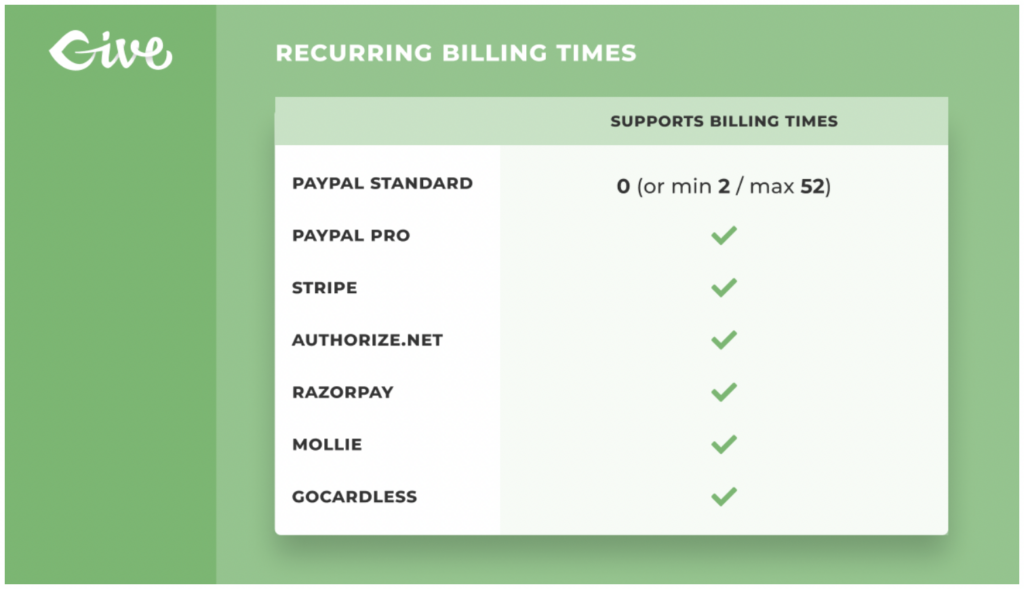
Some Gateways support allowing you to choose how many times a donation should recur. For example, if you want to ask donors to donate every month for 6 months and then for the subscription to end automatically, you can choose in the ” Recurring Times” column “6”. This number includes the initial first payment and all payments afterward, so it’s the total number of times the card is charged.
This table shows which Payment Gateways support “Billing Times.”
Donor Login/Register Options
NOTE: This feature requires version 1.1.1 or newer of Recurring Donations and GiveWP Core version 1.4 or newer.
For your donors to have a good donation experience, you want them to have the freedom to cancel their recurring subscriptions whenever they like — rather than call or email you to do it. With GiveWP, that is possible in two ways:
Enable Email Access
The free GiveWP Core plugin has a feature called “Email Access.” This allows donors who do not have a user account on your site to request temporary access to see their donation history on your site. You can read full details about this here.
This access includes viewing and canceling any of their active recurring donation subscriptions.
With Email Access enabled, you don’t have to ask your donors to register or login to donate.
Register/Login
Alternatively, you can request that users create an account at the time of donation or log in to make a recurring donation. The benefit is that your donors will have secure access to your website to view their donor history and cancel their subscriptions whenever they like.
If you do not have Email Access enabled, and you set your form to accept Recurring Donations, then Register/Login is required because it is the ONLY way that your recurring donors can view their donation history or cancel their account. In that case, in place of the register/login settings on your form, you’ll see this notice:

Remember that if you choose the “Admin choice” Recurring option and choose a Multi-level form where some levels are recurring and others are not, the register/login fields will toggle based on the donor’s choice.
Goal Options with Recurring Donations
With the Recurring Donations add-on active, you are given the option to apply goals only to recurring donations on the Donation Goal tab of each form.
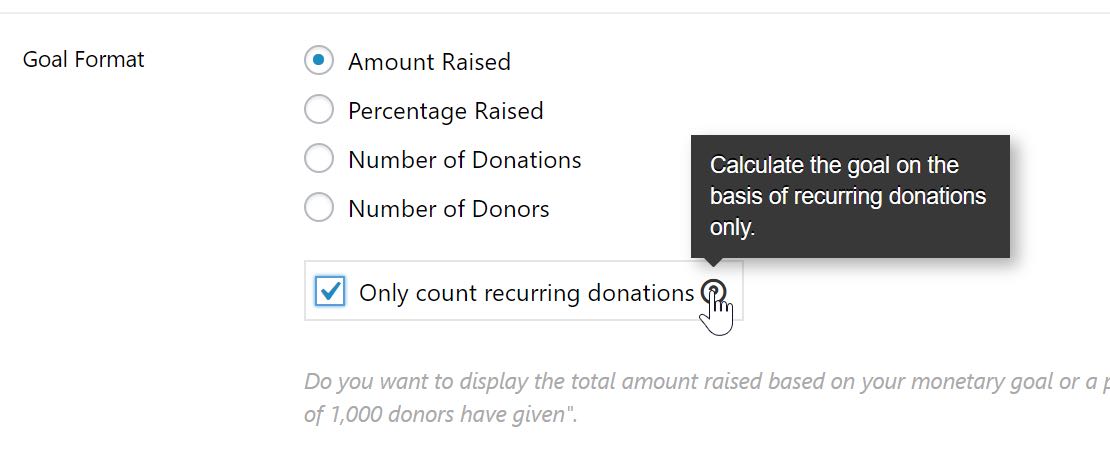 Want to track only recurring donations in goals? Check this box.
Here’s a brief explanation of each option when that box is checked:
Amount: Displays the total active subscription value in terms of amount: e.g., “$200 out of $500”
Percentage: Displays the total active subscription value in terms of percentage, e.g., “41% raised”
Donations: Displays the total number of active subscriptions (lists as “donations”): e.g. “53 out of 100 donations”
Donors: Displays the total number of active subscriptions (lists as “donors”): e.g. “53 out of 100 donors”
If a donation is canceled or completed (in the case of a time-limited subscription), its total will no longer be used in the calculations for the goals. In case of a discrepancy after manually canceling a subscription, use the Data recalculation options at Donations > Tools > Data to recalculate the totals used to display goals.
If this box is left unchecked, recurring donations (both the initial donation and all renewals) will count toward goals alongside one-time donations. If a donation is canceled or completed (in the case of a time-limited subscription), its total will no longer be used in the calculations for the goals.





