

Campaign Grid Block
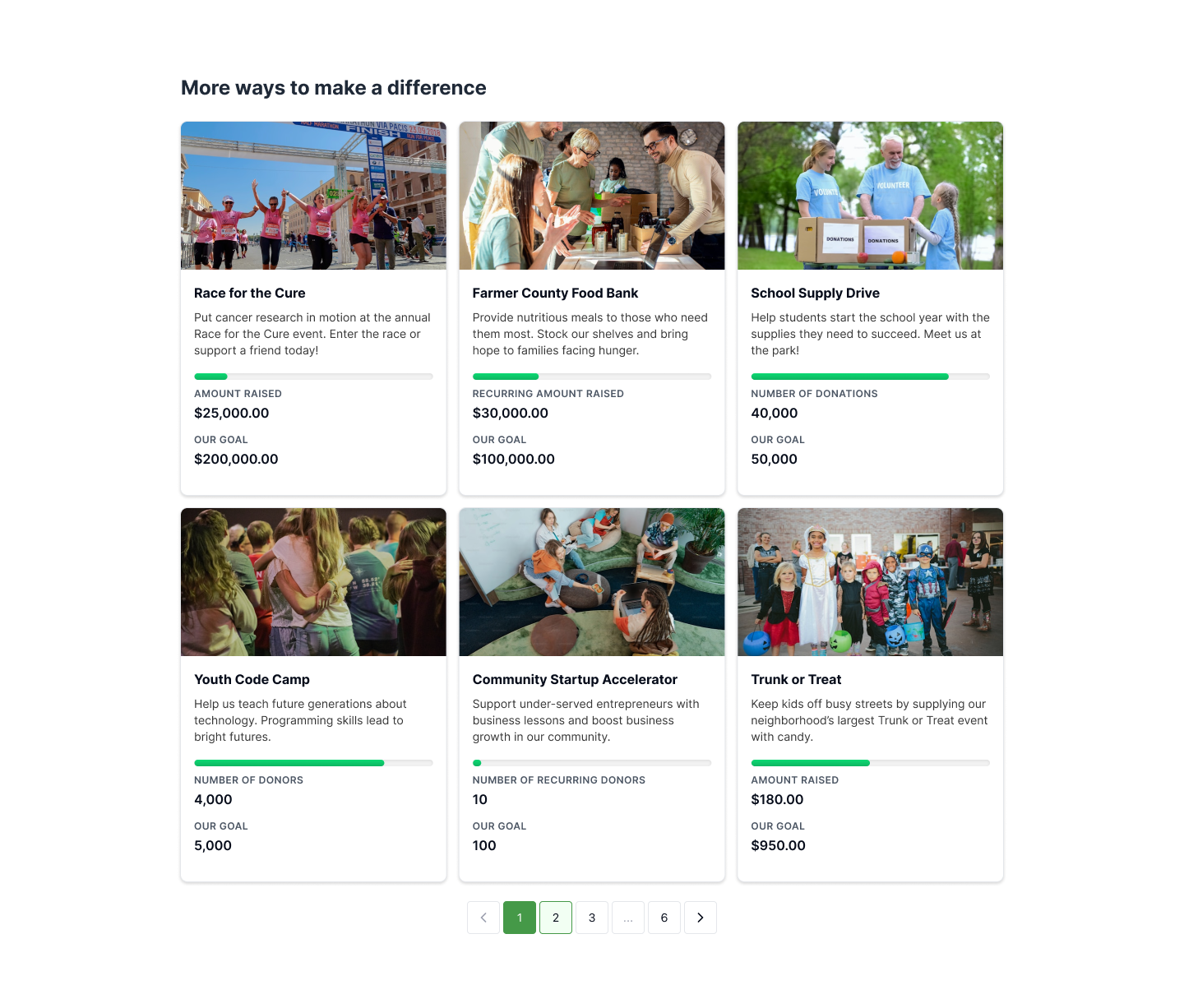
The Campaign Grid Block provides a way to display details from multiple fundraising campaigns on any page or post on your website using WordPress blocks (also known as Gutenberg blocks).
Add a Campaign Grid Block to a Page
As long as you have at least one live campaign, you can use the Campaign Grid block to display it anywhere on your website.
- Open the page or post you’d like to add the Campaign Grid block to, and make sure you’re using the WordPress Block Editor.
- Open the block menu, and search for “campaign.”
- Drag the Campaign Grid block onto your page, wherever you’d like to place it.
- Configure any settings you want to change.
- Save your changes, and view the results on your live page!
Campaign Grid block Settings
Since the Campaign Grid block pulls information from the campaigns you have created, there is no need to update content. Just add it to a page, and you’re good to go! However, you can choose which campaigns you want to display, and what information you want to share about them.
Layout
You can choose how you want the Campaign Grid to look on your page by selecting a layout.
- Full Width: (default) The campaigns are displayed in a single stack on the page.
- Double: Two campaigns are displayed in each grid row.
- Triple: Three campaigns are displayed in each grid row.
These layouts are responsive. So, Triple layouts will change to Double and then Full Width as the screen, window, or container size decreases. Double layouts will change to Full Width on smaller screens as well.
Display Elements
These settings allow you to toggle on/off any campaign information the Campaign Grid block shows. All of this information is configured in the campaign details found in the Campaign Settings page for each of the campaigns you have created.
- Show campaign image: When toggled on, this automatically displays the cover images you have set for your campaigns.
- Show description: When toggled on, this automatically displays the descriptions you have set for your campaigns.
- Show goal: When toggled on, this automatically displays the goals you have set for your campaigns.
Grid Settings
You have several options to determine how your Campaigns should show up in the grid. You can control which campaigns are shown, what order they appear in, and how pagination should work.
Order By
Choose a parameter to sort your Campaigns.
- Date Created: (default) Campaigns are ordered by the date they were created.
- Total Amount Raised: Campaigns are ordered by the total amount of donations they have raised.
- Number of Donations: Campaigns are ordered by the number of donations they have received.
- Number of Donors: Campaigns are ordered by the number of donors who have contributed.
Order
Once you’ve chosen an parameter to sort your campaigns, decide whether they should appear in ascending or descending order based on that parameter.
- Descending: (default) Campaigns appear from greatest to least or newest to oldest, depending on what you selected for the Order By setting.
- Ascending: Campaigns appear from least to greatest or oldest to newest, depending on what you selected for the Order By setting.
Example: Ordering Campaigns by Total Amount Raised in Descending order will display them in order from the Campaign that has raised the greatest amount of funds to the one that has raised the least.
Filter By Campaign
Add the Campaigns you would like to display on the Grid. Only these Campaigns will be shown. To use the filter, start typing the name of a Campaign in the field. As you’re typing, you will see the name of any Campaign that matches what you’re typing appear below the field, and you can select it. You can add multiple Campaigns to the filter.
Campaigns Per Page
When you have a lot of Campaigns, you can limit how many show on each page of the grid. The default is 6, but you can enter any number you like.
Show Pagination
When this setting is toggled on, your site visitors will see page navigation to view any Campaigns that don’t appear on the first page of your grid. When it’s toggled off, visitors will not be able to view additional Campaigns.
Campaign Grid Links
The Campaign Grid block automatically links each Campaign in the grid to its Campaign Page. This is the landing page that is automatically generated for your campaign when you create it. The Campaign Grid block was built to work together with Campaign Pages, and that is currently the only destination the block links to.
If you delete or unpublish the Campaign Pages, the block links hasve nowhere to go. The campaigns will still show up in your grid, they just won’t be clickable anymore.





