

Per Form Gateways
Per Form Gateways allows site admins to choose which payment gateways are available for each individual donation form. This makes it possible to tailor payment options for specific campaigns or audiences.
For example, one fundraiser might accept Credit Card and PayPal, while another allows only Offline Donations. This feature is especially helpful for donation forms targeting specific countries or regions where only certain payment gateways are supported.
Make sure the Per Form Gateways add-on is installed and activated, and that the license key is active.
Note: If you need assistance installing and activating GiveWP Add-ons, please read our detailed doc on that here.
Per Form Gateways in the Visual Donation Form Builder
After the Per Form Gateways plugin is active, make sure you’re in the Build step at the top of the form. Next, click on the Payment Gateways block at the bottom of the form, and a new Form gateway options section will appear in the sidebar Block settings.
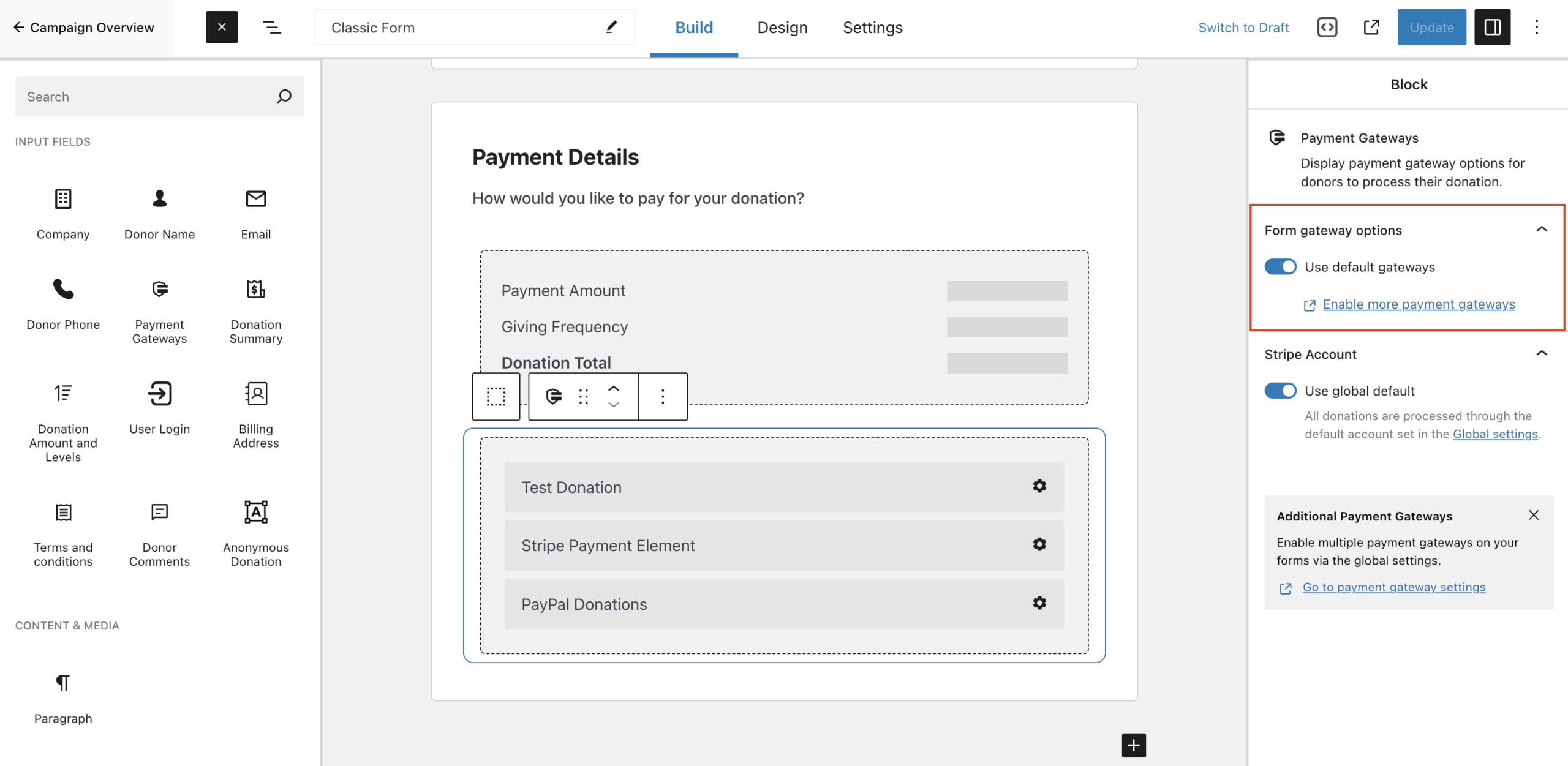
Form Gateway Options
In the Form gateway options settings, the Use default gateways setting is enabled by default. Disable that setting to see the Allowed Gateways list. This list displays all gateways that a are currently enabled in GiveWP > Settings > Payment Gateways on the Visual Form Builder tab.
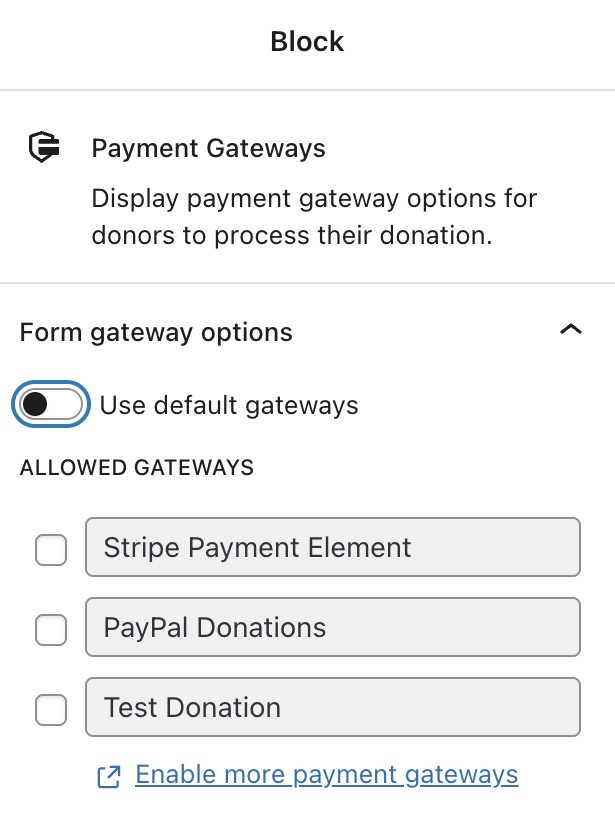
Check the gateways from the list you would like enabled on this specific donation form. If none are checked, all the gateways that are currently enabled will be displayed.
Once you have chosen your gateways, be sure to save your changes, and preview the donation form to assure the gateways selected are showing as expected.
Per Form Gateways in the Option-Based Form Editor
After the Per Form Gateways plugin is active, a new metabox Form Gateway Options is created on your donation form edit screen in the sidebar under the Publish metabox.
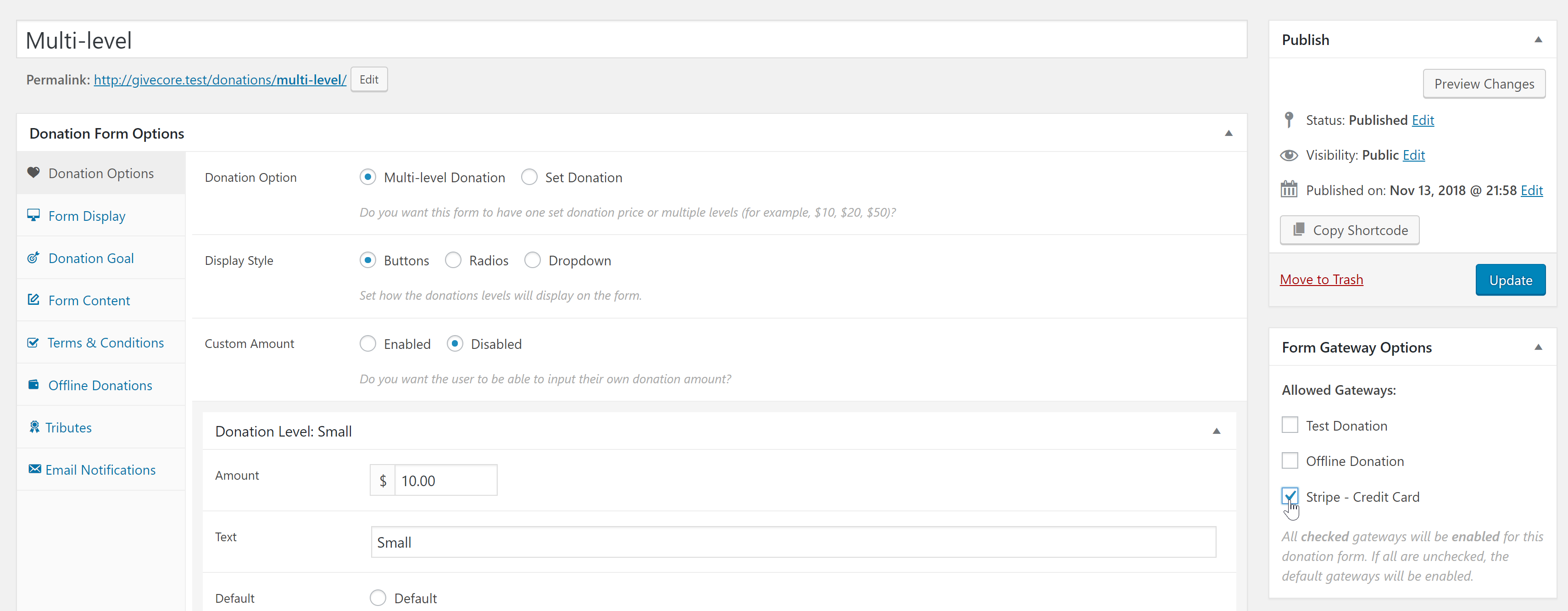
Form Gateway Options
The Allowed Gateways list displays all gateways that a are currently enabled in GiveWP > Settings > Payment Gateways on the Option-Based Form Editor tab. Check the box for the gateways you would like enabled on this specific donation form. If none are checked, all the gateways that are currently enabled will be displayed.
Once you have chosen your gateways, be sure to update the form and preview to assure the gateways showing are what you selected.
Relationship between the Default Gateway and the Per Form Gateways
GiveWP allows the admin to set a default payment gateway per form. You can find this setting in the Form Fields tab. Using this setting you can either select the Global Default or any of the other active gateways you have enabled in your global Payment Gateways settings.
What Happens if I Disable the Default Gateway in my Per Form Gateway Settings?
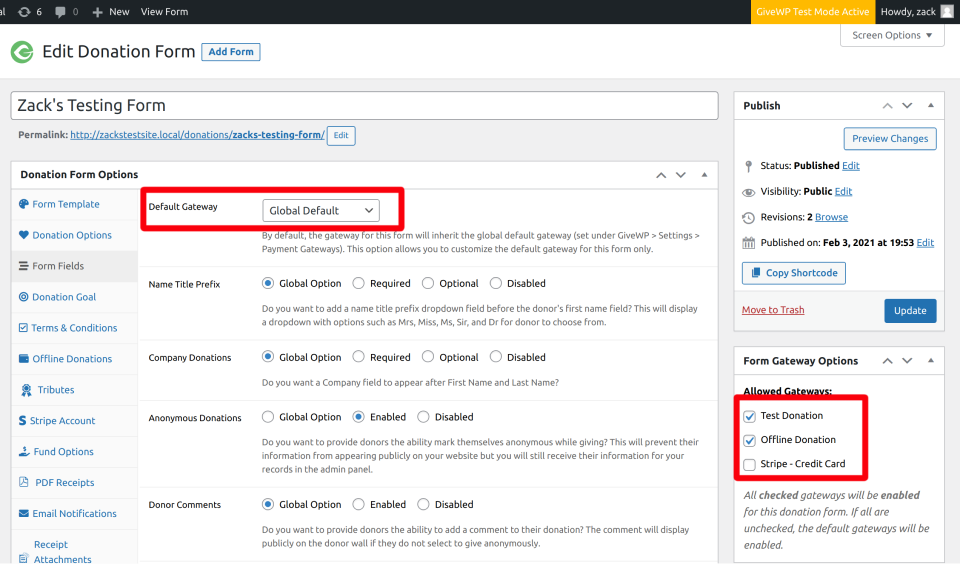
If you are using the Form Gateway Options section to select payment gateways that exclude the Default Gateway, the first one of the checked will be the new default gateway on the form.
For example, if you have several gateways available and you’ve selected the Authorize.net gateway as your default gateway. If then you select only Paypal Donations and Stripe – Credit Card in the Form Gateway Options meta box, your donation form will only display Paypal Donations and Stripe – Credit Card in the gateway section of the form.
In summary, the Form Gateway Options overrides both your global Payment Gateway settings, and the Default Gateway setting in the donation form.





