

Sequential Ordering
The Sequential Ordering setting makes sure donation IDs always increase by one, without skipping numbers. This can be helpful for nonprofits in countries where financial reporting requires strictly sequential IDs.
Normally, WordPress assigns IDs to all kinds of content—posts, pages, and donations. That means donation IDs can jump ahead if another post type is created. Sequential Ordering fixes this by giving donations their own numbering system, so every new donation follows the previous one.
How It Works
- By default, WordPress assigns IDs to all posts, pages, and custom post types. Because donations are stored as a post type, their IDs may not always be sequential.
- When Sequential Ordering is enabled, GiveWP assigns a unique donation number that counts up by one for every new donation.
- Sequential donation numbers appear in reports, donor receipts, and the donation details screen.
Note: Sequential Ordering does not change the WordPress post ID. It simply adds a separate, consistent donation number in the post_title field.
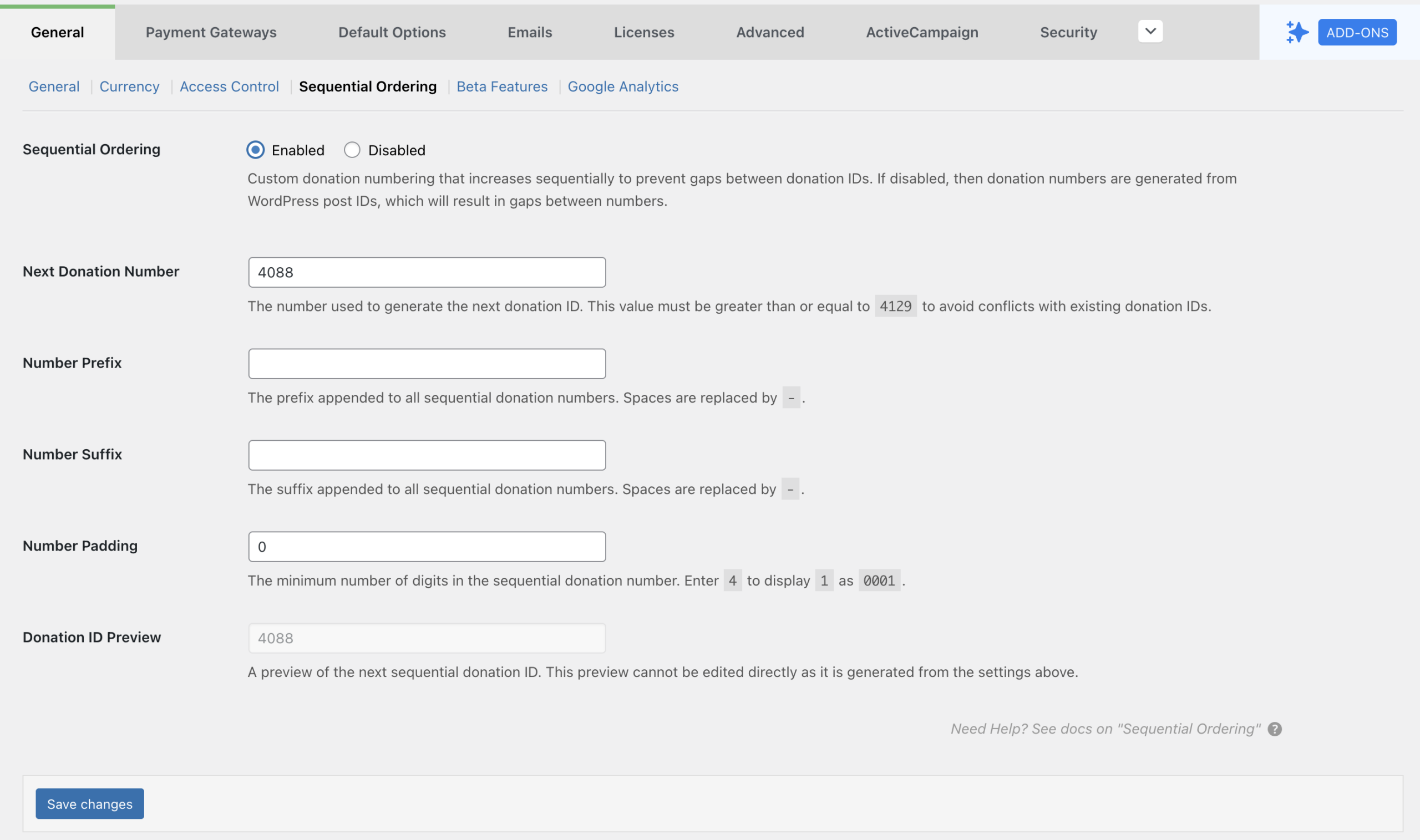
Sequential Ordering
Field Type: Radio buttons
Options: Enabled | Disabled
Default: Enabled
This setting enables the sequential ordering feature. All other fields appear only after this is enabled.
Next Donation Number
Field Type: Number field
Default: 1
Visibility: Appears when “Sequential Ordering” is set to “Enabled”
This setting lets you set exactly what the very next donation ID will be. This is helpful for sites that already have existing donations.
Number Prefix
Field Type: Text field
Default: {Empty}
Visibility: Appears when “Sequential Ordering” is set to “Enabled”
If you’d like to set a prefix to all your donations, this lets you do that. For example, donation IDs that were 001 can be set to #DON001 by adding “#DON” as your “Number Prefix.”
Number Suffix
Field Type: Text field
Default: {Empty}
Visibility: Appears when “Sequential Ordering” is set to “Enabled”
Similarly to the “Number Prefix”, this lets you set a donation ID suffix. For example, donation IDs that were previously 001 can be set to 001-DON by adding “-DON” as your “Number Suffix.”
Note: both the Prefix and the Suffix support date-related tags. Try these in the fields:
- {D}: Day of the month without leading zeros (1-31)
- {DD}: Day of the month, 2 digits with leading zeros (01-31)
- {M}: Numeric representation of a month, without leading zeros (1-12)
- {MM}: Numeric representation of a month, with leading zeros (01-12)
- {YYYY}: A full numeric representation of a year, 4 digits (2017 or 2019)
- {H}: 24-hour format of an hour without leading zeros (0-23)
- {HH}: 24-hour format of an hour with leading zeros (00-23)
- {N}: Seconds with leading zeros (00-59)
Number Padding
Field Type: Number field
Default: 0
Visibility: Appears when “Sequential Ordering” is set to “Enabled”
Number padding lets you set an exact number of digits that are pre-set for the donation IDs. For example, setting this to 4 will set the donation IDs to 0001, 0002, and so on.
Donation ID Preview
Field Type: Locked Text Field
Default: 1
Visibility: Appears when “Sequential Ordering” is set to “Enabled”
This field is not a configurable field, it is locked. It is dynamically updated to show you what your donation IDs will look like with the previous fields configured to your liking.
FAQs
post_title ) so there won’t be a conflict if by chance the post ID and donation ID are the same.





