

Adding Existing Subscriptions to GiveWP
If your site is connected to a supported payment gateway, it’s possible to link existing subscriptions—created outside of GiveWP—to your site so that future renewals appear in your donation records.
This is helpful for nonprofits migrating from another platform or consolidating recurring donations into one place.
Note: This process requires the Manual Donations add-on to be installed and active. If this is your first time using a GiveWP add-on, read the instructions on downloading, installing, and activating GiveWP Add-ons.
IMPORTANT: This is an advanced process intended for site admin managers with access to site backups.
- GiveWP Priority Support cannot assist with manual data imports.
- Make sure your site is fully backed up before making any database-level changes.
Step 1: Prepare a matching donation form
Create or confirm a donation form that matches the amount and frequency of the subscription being created. If you’re creating subscriptions with varying amounts, use a form that allows custom donation amounts.
Step 2: Add the manual donation entry
- Go to GiveWP > Donations
- Select the New Donation button at the top of the screen
- Select a donation form form the Donation Form list that supports the recurring settings needed.
- Select the correct Donation Level and Donation Amount
- This will display a message with either a checkbox asking Is this a subscription donation?, or confirm a subscription is being created automatically if the form is set with a Donation Type as “Fixed”. Make sure and check that box if visible so a new subscription will be created in GiveWP > Subscriptions upon saving the new donation.
- Continuing filling out the donation that matches the original (parent) donation payment of the actual subscription.
- Date
- Amount
- Payment Gateway
- Donor Info
Step 3: Link the Subscription by the Profile ID
- Go to GiveWP > Subscriptions
- Edit the subscription just created
- Edit the Profile ID field to match the subscription ID from your payment gateway.
Note: If you’re not sure what value should be entered in the Profile ID, view an existing subscription entry with the same payment gateway and check the Profile ID entry for reference.
Once the Profile ID is in place, this connects the local subscription and donation renewals to the external subscription source on the payment gateway so they stay in sync going forward.
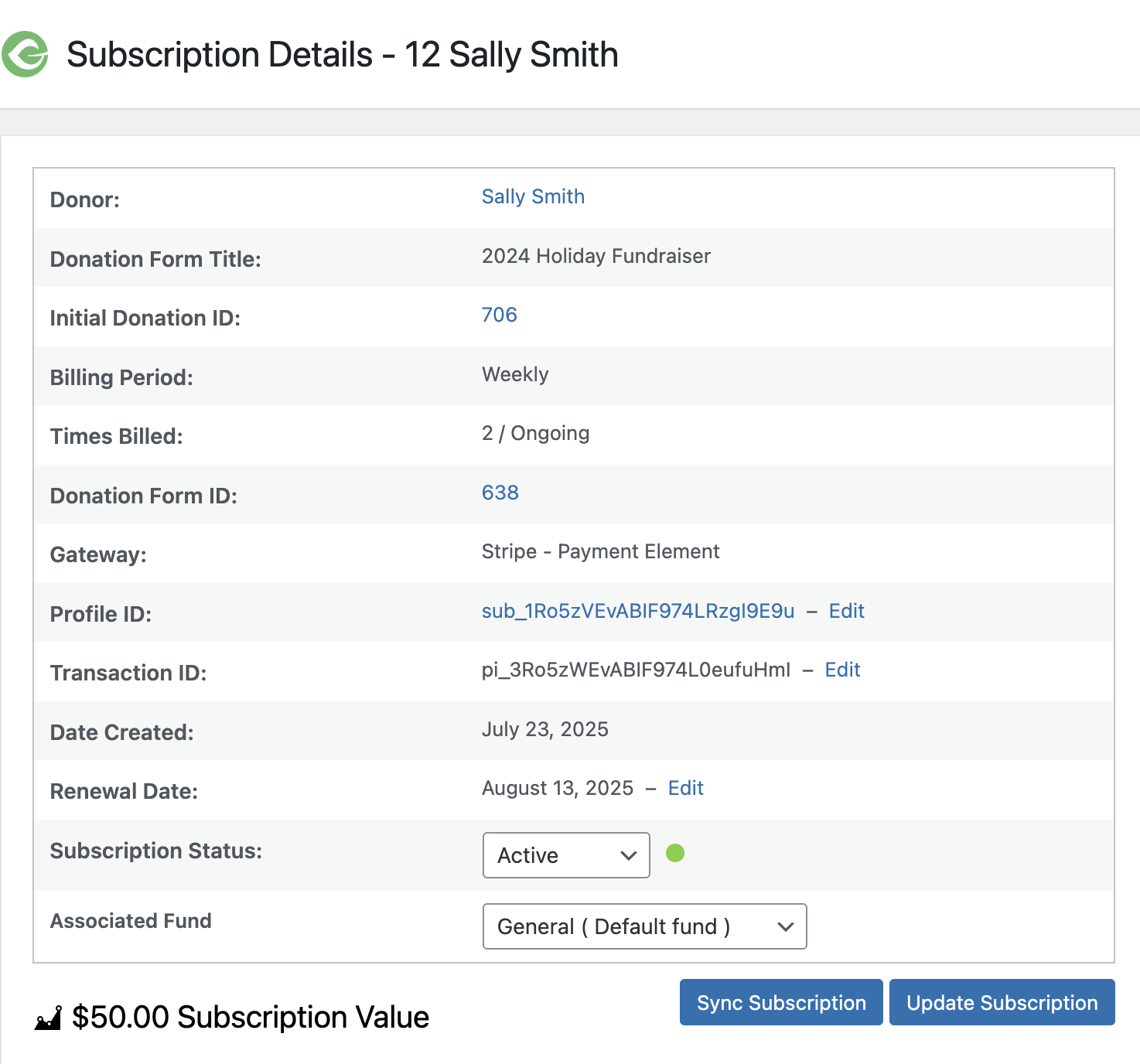
Step 4: Sync Past Renewals
Once the Profile ID is set, click the Sync Subscription button on the subscription page. This attempts to import past renewal payments from the gateway.
Note:
* Not all payment gateways support syncing subscription renewal entries. If the Sync Subscription button isn’t visible, it means that gateway doesn’t support this option.
* Some gateways (like Authorize.Net) may only return up to 6 months of renewal history due to API limits.





