

Payment Gateways
These articles describe the payment gateways that GiveWP comes with. GiveWP comes with Stripe – Payment Element, PayPal Donations, Test Donations, and Offline Donations in the free plugin. This section describes each of those in detail.
Articles in this section:
 Stripe Payment Element
What is a Payment Gateway?
Payment Gateways are methods by which you can collect donations on your site with the GiveWP WP plugin. But the purpose of a “Gateway” is to keep all of the private donor information safe and secure. This means specifically that a Gateway’s main purpose is to send your donors’ sensitive information (specifically credit card information) encrypted to the payment processor (like PayPal or Stripe, etc.) without saving it on your site at all.
Why is this important? You do not want to be responsible for credit card information — ever. Storing that information requires a very significant amount of responsibility and liability. If you are a small organization, that kind of liability could sink you quickly. So instead of storing that information, payment processors (like PayPal or Stripe, etc) connect with your site and that information is sent directly to them without ever touching your server.
How do I Enable a Specific Payment Gateway?
Out of the box, GiveWP comes with these Payment Gateways: PayPal Donations, Stripe Payment Element, Stripe Free, Test Donations, and Offline Donations. To enable any of them, go to GiveWP > Settings, and then the Payment Gateways tab, and check off the ones you want enabled in the Enable Gateways section.
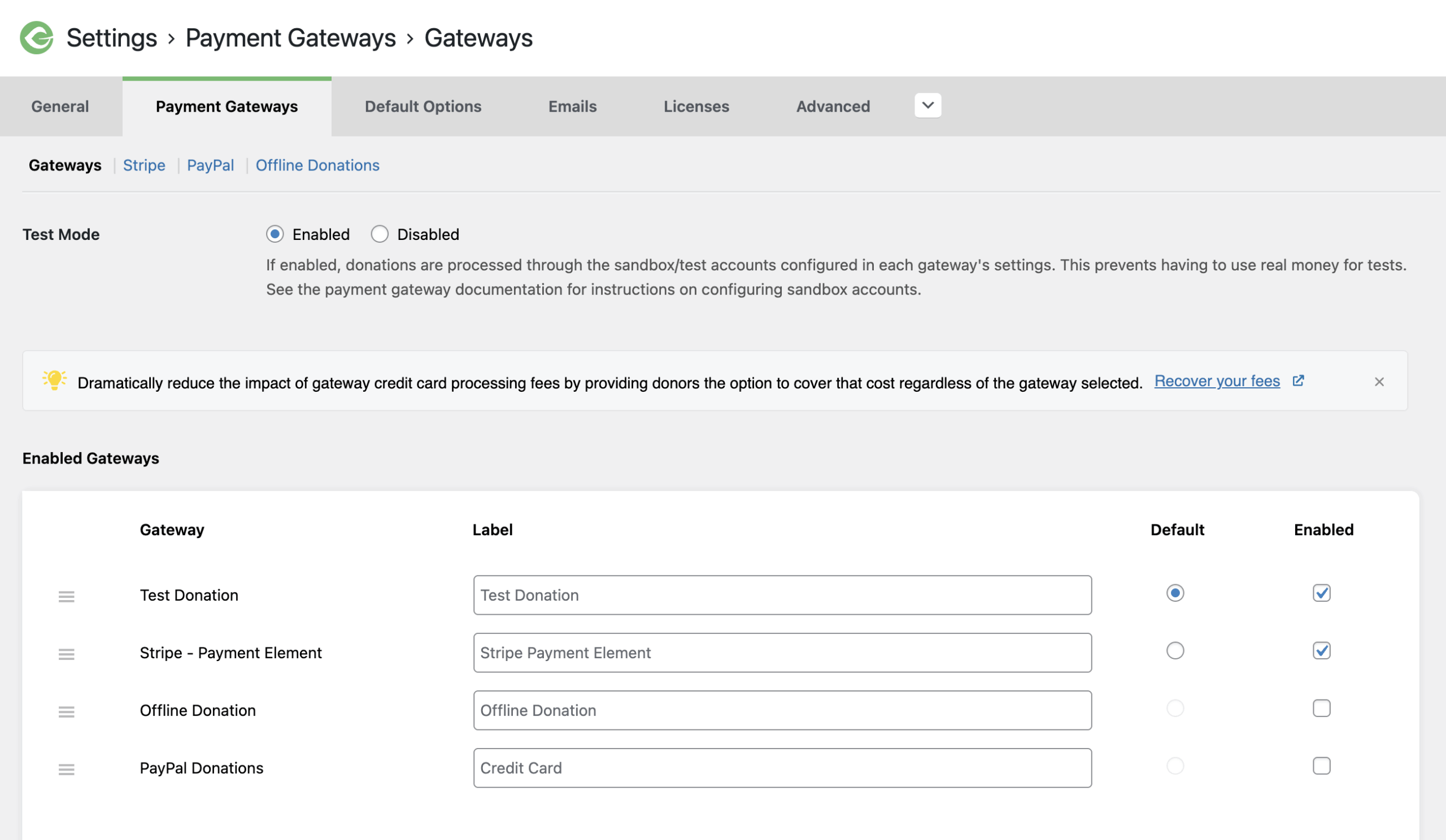
If you have a premium Add-on Payment Gateway (like Stripe, etc), it will appear in this list after you activate the Add-on.
You will also see the ability to change the payment gateway labels on the front end of the form. This is to help clarify which payment gateway the donor would like to use.
You can also drag the payment gateways into whichever order you like, which will be reflected on all your forms. Make sure to hit Save after re-ordering.
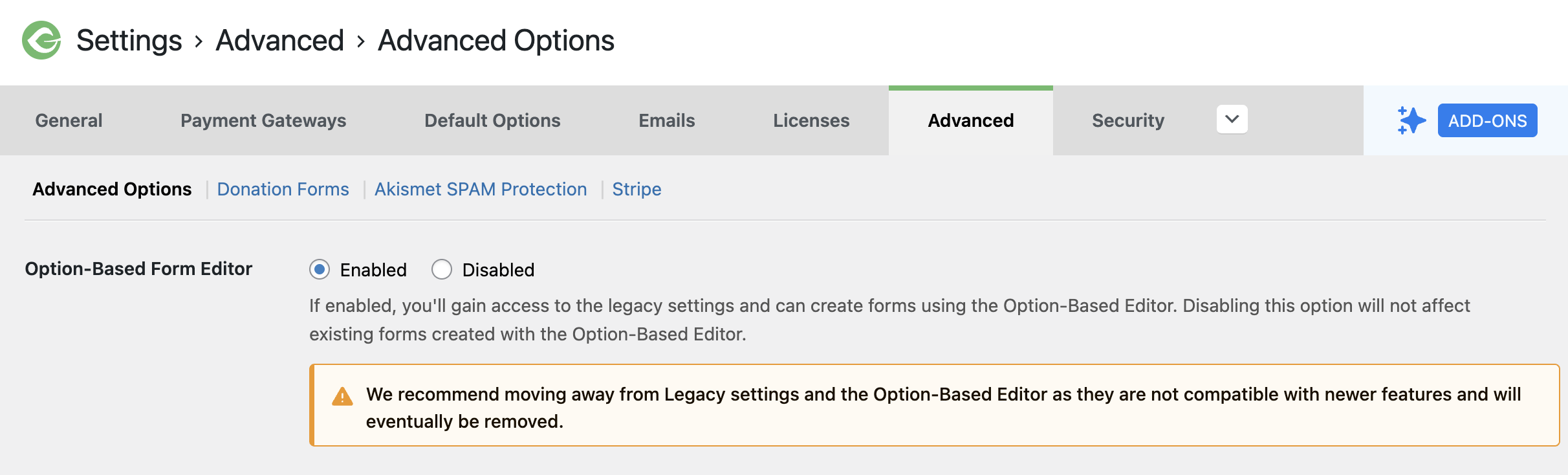
Note: If you have your payment gateway checked above, but do not see it on your donation form, this means your forms are the older Option-Based or Legacy form templates. To see those payment gateway settings, navigate to GiveWP > Settings > Advanced – Advanced Options and click Enabled for the Option-Based Form Editor setting as seen below.
Payment Gateway Compatibility
With the 3.0 update of GiveWP, some payment gateways are compatible with the Visual Donation Form Builder, some are compatible with the option-based form editor, and some are compatible with both. Review this table to understand which payment gateways can be used with each form editor.
|
Payment Gateway | Option-based Form Editor | Visual Donation Form Builder |
|---|---|---|
|
Test Gateway |
Compatible |
Compatible |
|
PayPal Donations |
Compatible |
Compatible |
|
Stripe (Free) |
Compatible: Credit Card, Checkout, SEPA Direct Debit, BECS Direct Debit |
Compatible: Stripe Payment Element |
|
Offline Donation |
Compatible | Compatible |
See the Visual Donation Form Builder Compatibility Guide for more information on payment gateway compatibility.
How can I accept Credit Cards Directly on my Website?
GiveWP also supports a growing amount of premium payment gateway offerings which allow you to accept donations via credit card directly on your website. These are premium Add-ons. You can see all of our Premium Payment Gateway Add-ons here.





