

Payment Gateways
The Payment Gateways tab of the GiveWP core settings page provides you with options for the default payment gateways as well as any Premium Add-on gateways you have activated.
Articles in this section:
 Venmo
VenmoGateways Settings
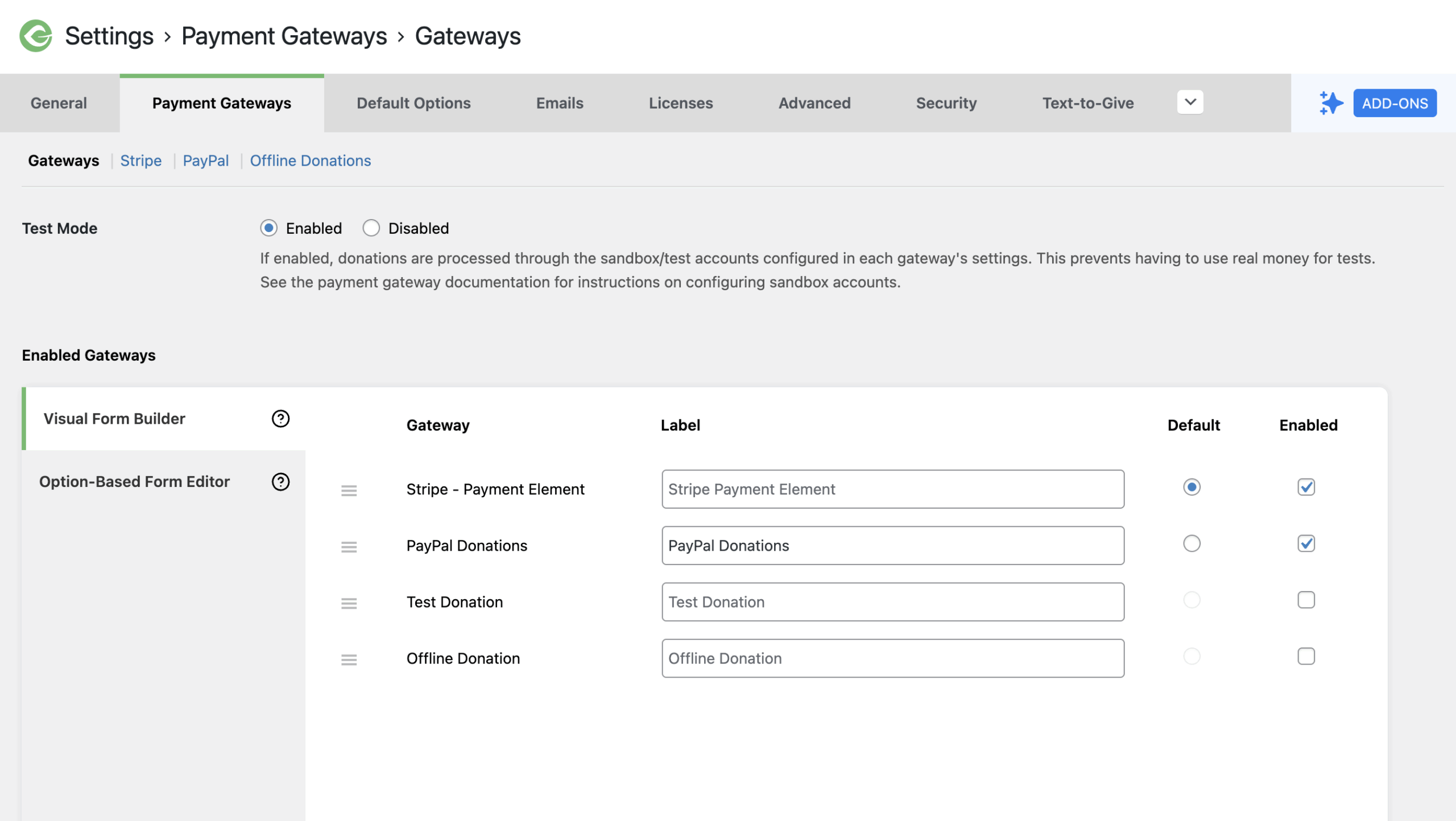
Test Mode
- Options: Enabled / Disabled
- Default: Enabled
To test GiveWP forms without using real money, GiveWP comes with the ability to test all of our supported gateways. Enabling the setting here will put GiveWP in Test Mode, which adds a notice to the top of all back-end admin pages showing that GiveWP test mode is active, as well as all forms on the front end.
Important: Refer to the individual docs for your payment gateway for more information on GiveWP Test Mode. Simply enabling the setting here is not sufficient to test payment gateways.
More information on using Test Mode with GiveWP is detailed here.
Enabled Gateways
The gateways listed by default are Stripe, PayPal Donations, Test Payment, and Offline Donation. Any premium add-on gateways will also appear in this list. Gateways are enabled here for all forms on your site by checking their respective boxes.
This table can be reordered by dragging the options around. You can also change the gateway labels that are displayed on your forms by adding custom text to the gateway input fields at GiveWP > Settings > Payment Gateways. One gateway can be selected as “Default” by selecting the radio button beside it. All gateways with checkboxes will be displayed on the front end.
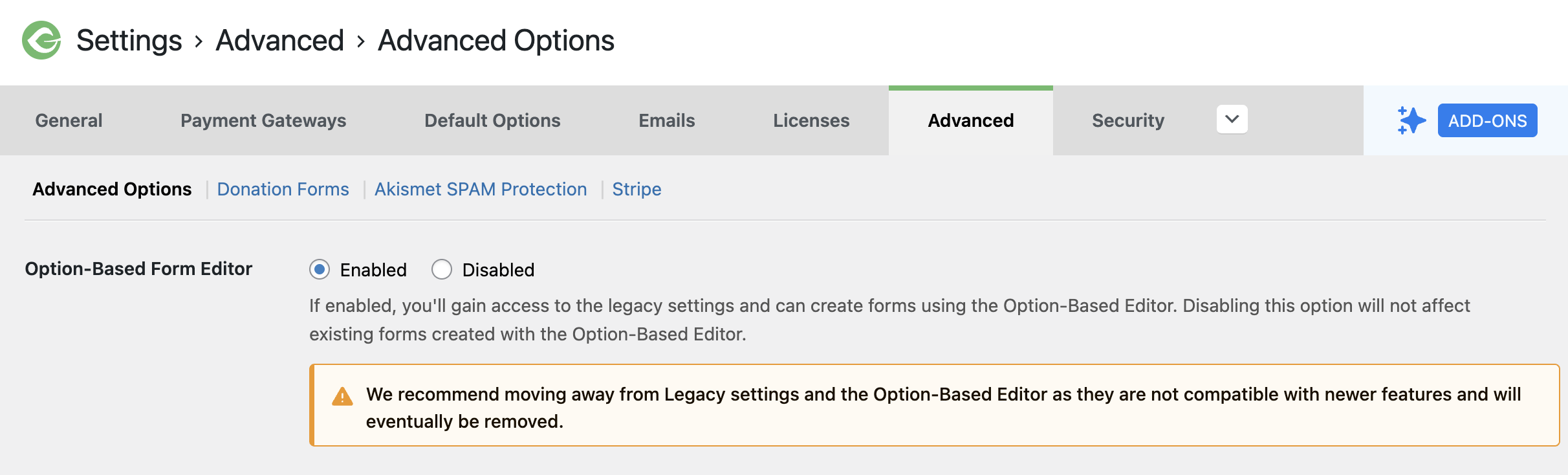
Enabling the Option-Based Form Editor
If you do not see the Visual Form Builder and Option-Based Form Editor tabs above, and you are still using the older Option-Based forms, you can enable this in GiveWP > Settings > Advanced – Advanced Options as seen below.
Collecting and Adding Billing Address Form Fields
Adding billing address fields to your GiveWP donation form boosts security, helps prevent fraud with address verification, and makes tax receipts easy for donors. Plus, it keeps your donor records organized for future thank-yous and updates—building trust and lasting connections.
Collecting and Adding Billing Address Fields for Visual Donation Form Builder Forms
For forms created using the new Visual Form Builder, the billing details are only collected if the form contains a Billing Address block.
Enabling billing details for a gateway will add billing address fields provided by that gateway for your forms. Using the billing fields provided by the gateway is an ideal and quick way to collect the billing address from your donors.
Collecting Billing Details for Options-Based Forms
In Options-based forms, billing details are only collected if the setting Collect Billing Details is enabled on the payment gateway that the donor used. Depending on the payment gateway that you’re using, this might be a checkbox or a radio button.
As an example, in Stripe, you have to tick this box in GiveWP > Settings > Payment Gateways > Stripe → General Settings to collect the billing address.
Accessing the Billing Details Information
It’s important to note that the billing address information is stored on the donation only, and it will not be included in the donor profile.
Once a donation is submitted, you can see billing details’ data by going to the Donation itself. This is also the source where the {billing_address} email tag will get its data from.
Not all gateways provide the billing details option. However, if the gateway does provide it, you’ll see it as an option within the gateway settings. Once it’s enabled, you can also pull in that billing address data into emails or even a custom PDF receipt using the {billing_address} template tag.
If the billing address option isn’t provided by your gateway, you can use the Form Field Manager add-on to collect those details. Form Field Manager offers you the ability to customize each field to your liking, where the billing details provided by a payment gateway are more of an all-or-nothing option.
GiveWP’s Free Payment Gateways
Out of the box, GiveWP comes with four payment gateways:
- Test Donations
- Offline Donations
- PayPal Donations
- Stripe
This setting screen allows you to configure each of those individually.
Test Donations
All donations have to be processed through a payment gateway in one way or another. Payment Gateways can take a bit of time to setup and sometimes you just want to review your donation process without having to deal with all the payment gateway configuration.
To that end, the Test Donation Gateway allows you to activate and test immediately.
To enable the Test Donation Gateway, go to GiveWP > Settings, then the Payment Gateways tab. You’ll see it listed there as one of the options.
Once it’s enabled, all your forms will show it as an option to choose for processing your donation.
NOTE: You can also use our Per-Form Gateways Add-on to designate one Form to ONLY use the Test Donations Gateway, just for testing purposes.
Learn more about the Test Donation Gateway.
Offline Donations
The Offline Donations option allows your donor to show that they intend to send you a payment “Offline”. This might mean a physical check in the mail. It might mean canned goods that they’ll drop off at your location. It could mean a lot of things, but it doesn’t mean a credit card payment.
When you enable Offline Donations, you can customize the default offline instructions that every donation form will inherit. But keep in mind that each form can customize those instructions. This gives you the most flexibility possible for your forms and offline donations.
Learn more about Offline Donations.
PayPal Donations
PayPal Donations is the best way to accept donations via PayPal. Your donors can contribute via their PayPal or Venmo accounts, or they can pay via Credit or Debit card. They don’t even need to have a PayPal account!
With PayPal Donations, your donors get a payment experience tailored to donations rather than the standard e-commerce-focused payment experience, and some registered nonprofits may benefit from better rates (contact PayPal for details).
Learn more about our integration with PayPal.
Stripe
Connecting your GiveWP settings with Stripe for free is as easy as clicking the blue button “Connect with Stripe”. You can connect as many accounts here as you like and each will be available to connect to any GiveWP form you like.
Note that our Stripe gateway adds a 2% fee.
Learn more about our free integration with Stripe.
Premium Gateway Settings
GiveWP offers a wide and growing array of Premium Payment Gateways which enable you to collect credit cards directly on your website. Some also support Recurring Donations. When you activate a Premium Gateway, their settings will appear on this page as well. Here’s links to the settings documentation for a few of our Premium Payment Gateways:





